We're making updates to improve your experience. Some products and checkout may be unavailable on Saturday, November 21 and Sunday, November 22. Thanks for your patience. Check our status page for updates.
Import Test Builder exports into Moodle to reuse assessments within an LMS course.
Tags
Higher Education
Customer Support
Connect
Course Management
Instructor
Share:
Importing Test Builder Export File to Moodle
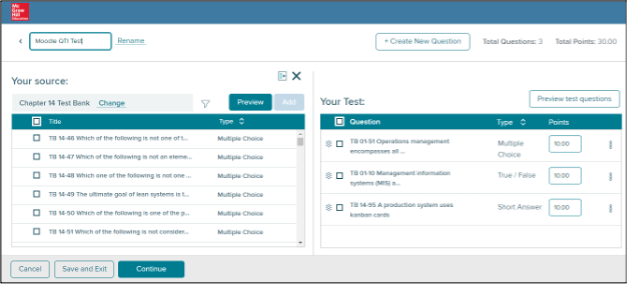
Create a new test in Test Builder and populate it with questions. Click Continue when finished.
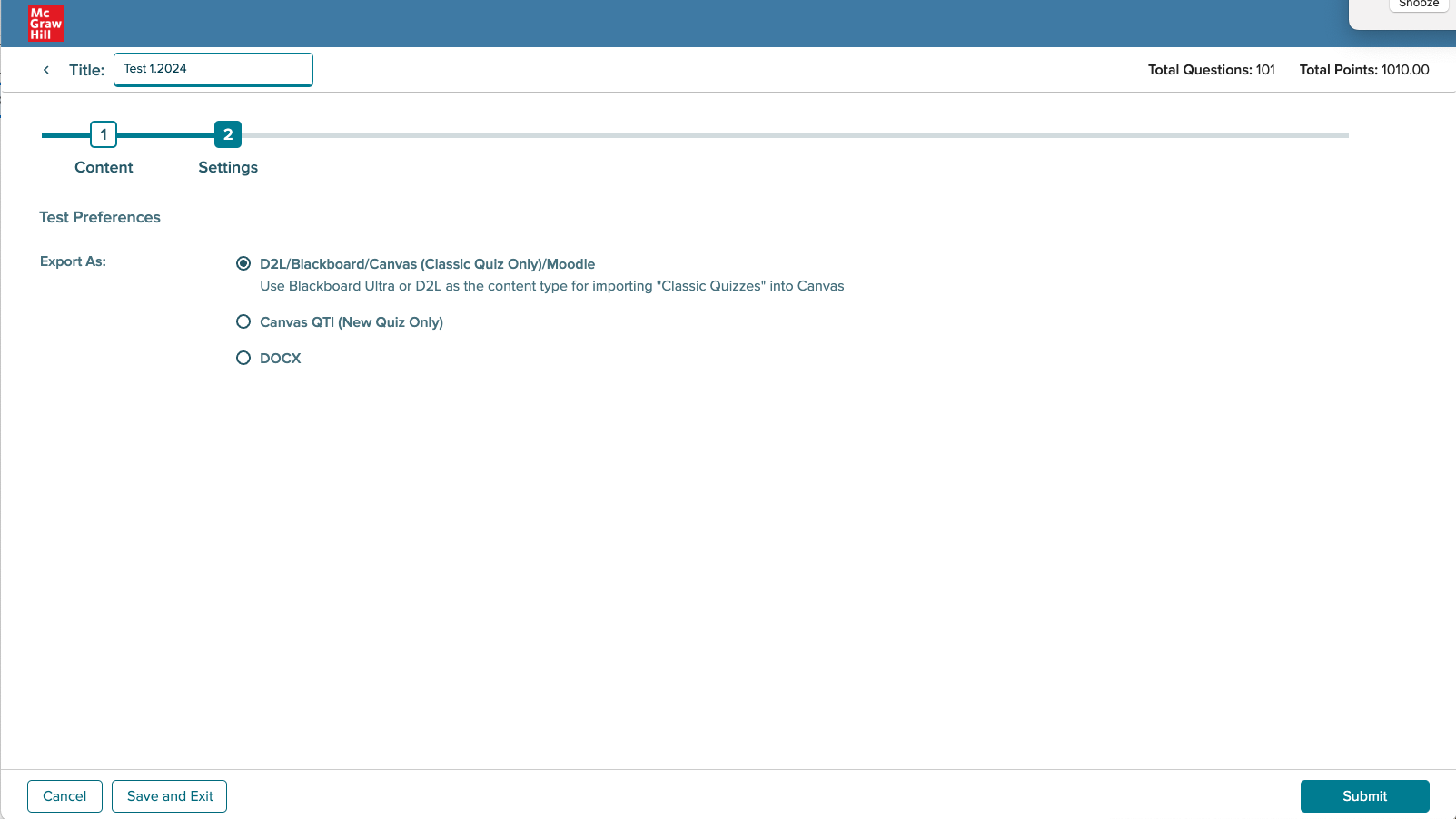
On the next page, select D2L/Blackboard/Canvas/Moodle then click Submit.
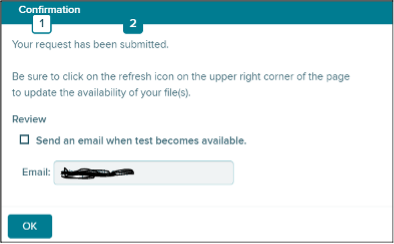
A prompt will ask if you want to get an email of when the export is done. Click OK when finished.
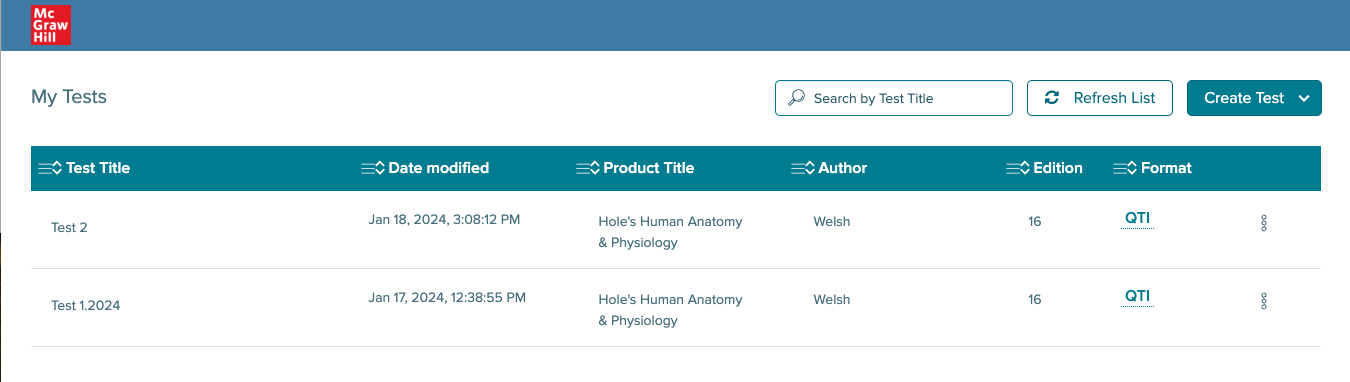
The new test will appear at the top of the tests I created page. Click QTI to download the export.
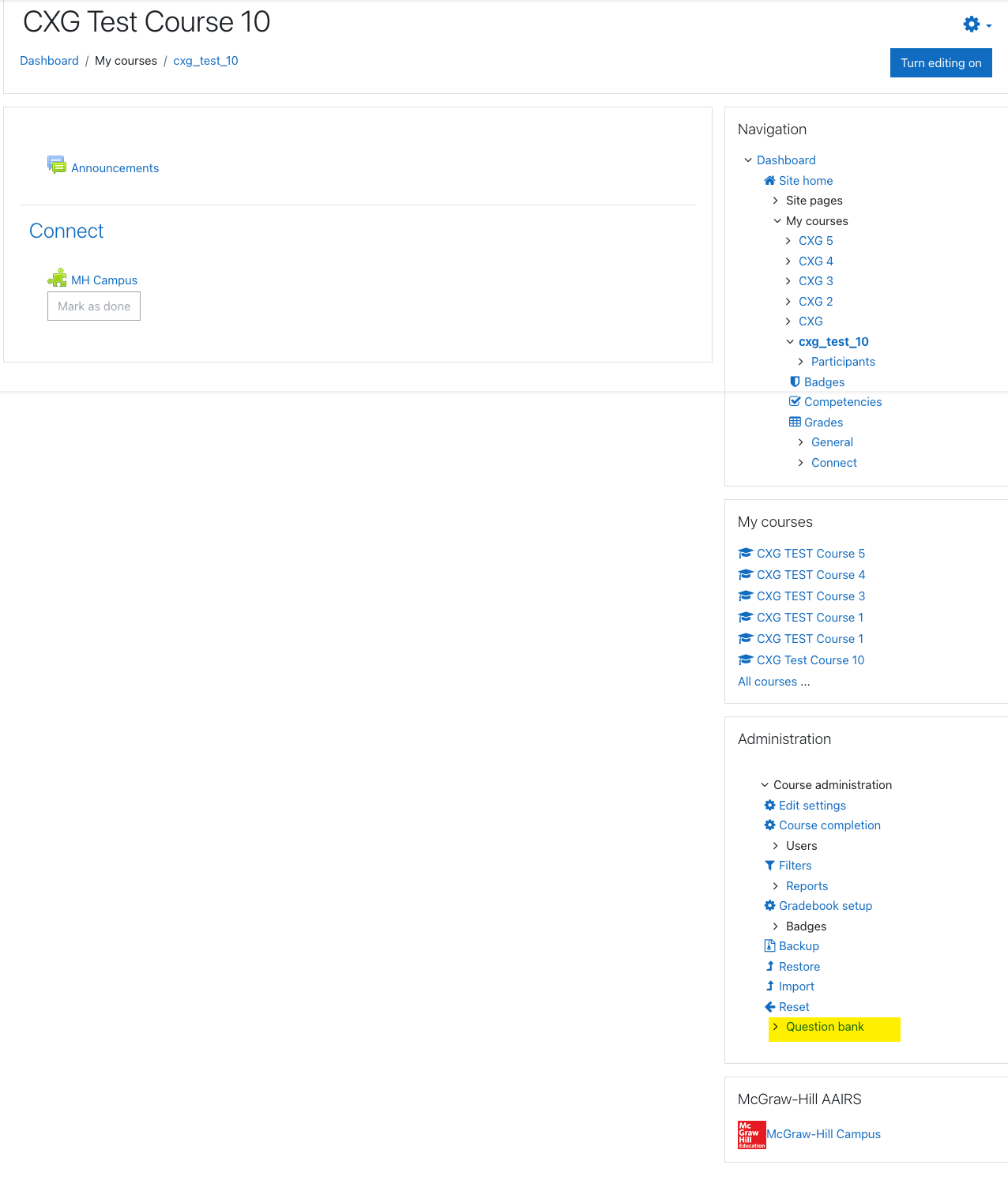
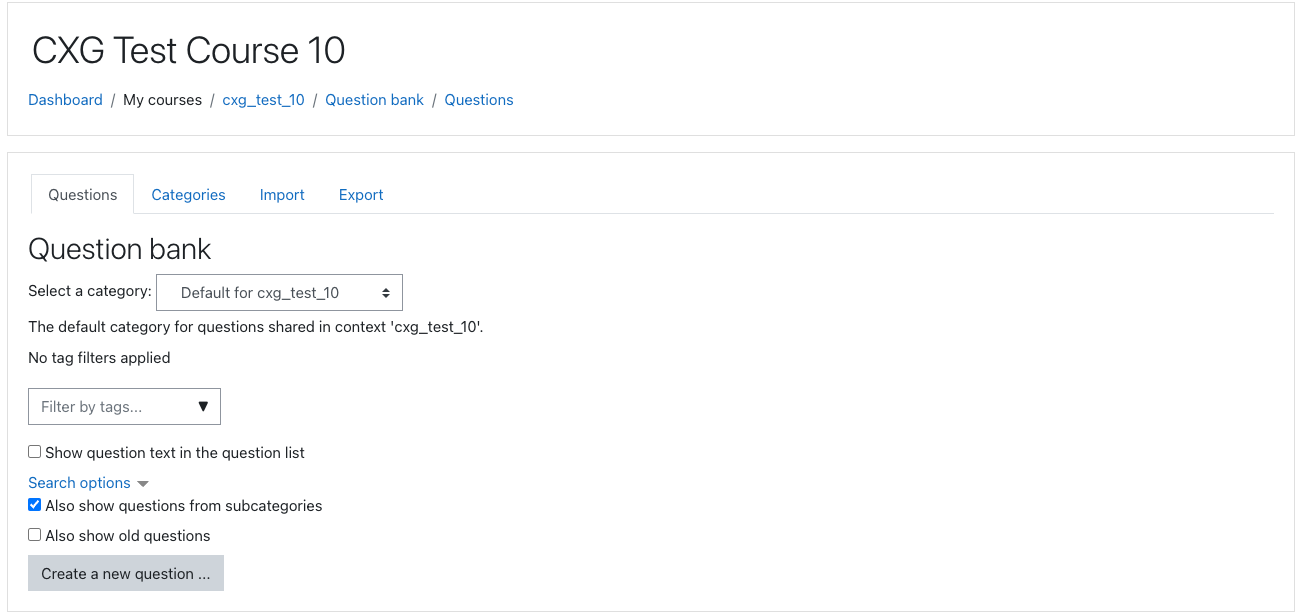
Next, login to Moodle and open any course in your account. Click Import under Question bank.
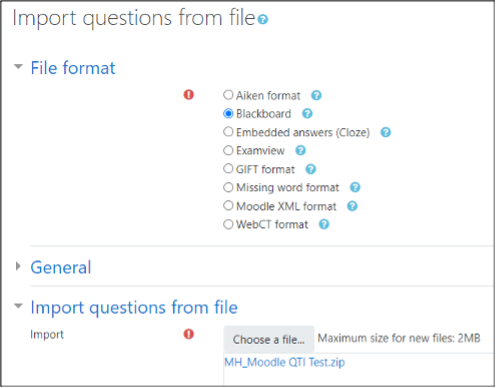
For File format, select Blackboard. For import questions from file, upload the export. Click Import next.
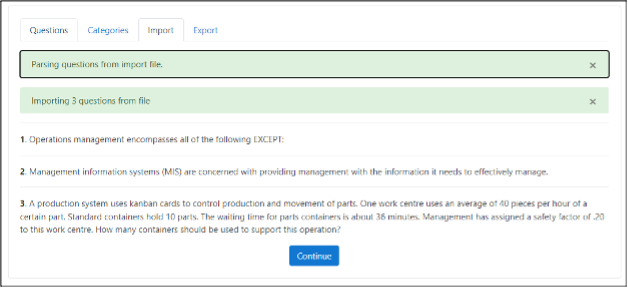
Next, you will see a page noting the uploaded question content. Click Continue when finished.
Help us improve!
Let us know how we can improve our support information by providing feedback in this short survey.
Top
Regional Page Available
It looks like you're outside the United States. Do you want to see your regional version of this page?
connect
Asset Format Type
Asset Format Type/Customer Support
Support Topics
Support Topics/Classroom & Course Management
Support Topics/Classroom & Course Management/Course Management
Programs & Solutions
Programs & Solutions/Connect
Personas
Personas/Higher Ed Educator
Personas/Higher Ed Educator/Instructor
Business Unit
Business Unit/Higher Education
highered
2026-03-24T18:42:06.075-03:00
<h2><span><span><span><span><span>Importing Test Builder Export File to Moodle</span></span></span></span></span></h2> <p> </p> <ol> <li><span><span><span>Create a new test in Test Builder and populate it with questions. Click <strong>Continue</strong> when finished.<br> </span></span><br> <br> <img alt="Picture1.png" src="/content/dam/mhe/support/support-images/migrated/rtaImage--526953766.jpeg" data-assetref="rtaImage--526953766-1787842048484"><br> <br> <span><span><br _rte_temp_br="brEOB"> </span></span></span></li> <li><span><span><span>On the next page, select <strong>D2L/Blackboard/Canvas/Moodle</strong> then click <strong>Submit</strong>.</span></span></span><br> <br> <img alt="Picture2.png" src="/content/dam/mhe/support/support-images/migrated/rtaImage--1153460248.jpeg" data-assetref="rtaImage--1153460248-1787842048484"><br> <span><span><span><br _rte_temp_br="brEOB"> </span></span></span></li> <li><span><span><span>A prompt will ask if you want to get an email of when the export is done. Click <strong>OK</strong> when finished.</span></span><br> <br> <img alt="Picture3.png" src="/content/dam/mhe/support/support-images/migrated/rtaImage--526953685.jpeg" data-assetref="rtaImage--526953685-1787842048484"><br> <span><span><br _rte_temp_br="brEOB"> </span></span></span></li> <li><span><span><span>The new test will appear at the top of the <strong>tests I created</strong> page. Click <strong>QTI</strong> to download the export.</span></span></span><br> <br> <img alt="Picture4.png" src="/content/dam/mhe/support/support-images/migrated/rtaImage--1153458427.jpeg" data-assetref="rtaImage--1153458427-1787842048484"><br> <span><span><span><br _rte_temp_br="brEOB"> </span></span></span></li> <li><span><span><span>Next, login to Moodle and open any course in your account. Click <strong>Import</strong> under <strong>Question bank</strong>.</span></span></span><br> <br> <img alt="Course - Administration.png" src="/content/dam/mhe/support/support-images/migrated/rtaImage--1153426130.jpeg" data-assetref="rtaImage--1153426130-1787842048484"> <img alt="Question Bank.png" src="/content/dam/mhe/support/support-images/migrated/rtaImage--1153420016.jpeg" data-assetref="rtaImage--1153420016-1787842048484"><br> <span><span><span><br _rte_temp_br="brEOB"> </span></span></span></li> <li><span><span><span>For <strong>File format</strong>, select <strong>Blackboard</strong>. For <strong>import questions from file</strong>, upload the export. Click <strong>Import</strong> next.</span></span><br> <br> <br> <img alt="Picture6.png" src="/content/dam/mhe/support/support-images/migrated/rtaImage--526953407.jpeg" data-assetref="rtaImage--526953407-1787842048484"><br> <span><span><br> </span></span></span></li> <li><span><span><span>Next, you will see a page noting the uploaded question content. Click <strong>Continue</strong> when finished.</span></span><br> <br> <img alt="Picture7.png" src="/content/dam/mhe/support/support-images/migrated/rtaImage--526953381.jpeg" data-assetref="rtaImage--526953381-1787842048484"></span></li> </ol> <div> </div> <div> </div> <div> </div> <div> </div> dts Import Test Builder exports into Moodle to reuse assessments within an LMS course. 2025-11-19 Moodle Course View Import Test Builder exports into Moodle to reuse assessments within an LMS course. Import Test Builder exports into Moodle to reuse assessments within an LMS course.
Import Test Builder exports into Moodle to reuse assessments within an LMS course.
Importing Test Builder Export File to Moodle Create a new test in Test Builder and populate it with questions. Click Continue when finished. On the next page, select D2L/Blackboard/Canvas/Moodle then click Submit. A prompt will ask if you want to get an email of when the export is done. Click OK when finished. The new test will appear at the top of the tests I created page. Click QTI to download the export. Next, login to Moodle and open any course in your account. Click Import under Question bank. For File format, select Blackboard. For import questions from file, upload the export. Click Import next. Next, you will see a page noting the uploaded question content. Click Continue when finished.