spelling-mastery
connecting-math-concepts
music-its-role
networks
glencoe-math
glencoe-science
corrective-reading
wonders
early-interventions-in-reading
my-math
ocr-foundational-skills-kit
spotlight-on-music
student
Support Topics
Support Topics/Getting Started & Orientation
Support Topics/Getting Started & Orientation/Back-to-School Setup
Programs & Solutions
Programs & Solutions/Glencoe Math
Programs & Solutions/Glencoe Math/Glencoe Algebra 1 2014
Context
Context/Curriculum Type
Context/Curriculum Type/Supplemental
Programs & Solutions/WonderWorks
Programs & Solutions/WonderWorks/WonderWorks 2022 & 2014
Context/Subject
Context/Subject/Visual & Performing Arts
Context/Education Level
Context/Education Level/High School
Programs & Solutions/Spelling Mastery
Programs & Solutions/Glencoe Math/Glenoce Algebra 2 2018
Programs & Solutions/Wonders
Programs & Solutions/Wonders/Wonders Balanced Literacy 2016
Programs & Solutions/StudySync
Programs & Solutions/StudySync/StudySync 2015 & 2017
Programs & Solutions/Glencoe Math/Glencoe Algebra 1 2018
Programs & Solutions/Networks
Programs & Solutions/Networks/Networks 2018
Context/Integration Type
Context/Integration Type/Direct Login & Auto-Rostering
Programs & Solutions/Glencoe Math/Glencoe Math Accelerated
Programs & Solutions/Connecting Math Concepts
Programs & Solutions/Open Court Reading
Programs & Solutions/Open Court Reading/Open Court Reading 2016, 2018, 2023
Context/Subject/Math
Asset Format Type
Asset Format Type/Customer Support
Programs & Solutions/Building Blocks
Programs & Solutions/Building Blocks/Building Blocks 2015
Business Unit
Business Unit/PreK-12
Programs & Solutions/Glencoe Math/Glencoe Algebra 2 2014
Programs & Solutions/Music! Its Role
Programs & Solutions/McGraw Hill My Math
Programs & Solutions/McGraw Hill My Math/McGraw Hill My Math 2013 & 2016
Programs & Solutions/Wonders/Wonders 2023 2020 2017
Programs & Solutions/Everyday Mathematics
Programs & Solutions/Everyday Mathematics/Everyday Mathematics 4 (K-6)
Programs & Solutions/Glencoe Math/Glencoe Geometry 2014
Programs & Solutions/Maravillas
Programs & Solutions/Maravillas/Maravillas 2020 & 2017
Programs & Solutions/Glencoe Math/Glencoe Geometry 2018
Context/Curriculum Type/Career & Technical Education
Programs & Solutions/World of Wonders
Programs & Solutions/World of Wonders/World of Wonders 2017
Programs & Solutions/Wonders/Wonders EL 2016
Programs & Solutions/iScience
Programs & Solutions/iScience/iScience 2017
Context/Subject/Health
Context/Subject/Social Studies
Programs & Solutions/Wonders/Wonders 2014
Context/Subject/World Languages
Programs & Solutions/Asi Se Dice
Programs & Solutions/Asi Se Dice/Asi se Dice 2016
Context/Subject/Literacy
Personas
Personas/School Educator
Personas/School Educator/Classroom Teacher
Programs & Solutions/McGraw Hill Pre-Algebra
Programs & Solutions/McGraw Hill Pre-Algebra/Pre-Algebra 2012
Context/Education Level/Preschool
Programs & Solutions/Glencoe Science
Context/Curriculum Type/Intervention
Programs & Solutions/Corrective Reading
Programs & Solutions/McGraw Hill Health
Programs & Solutions/McGraw Hill Health/McGraw Hill Health 2014
Programs & Solutions/Inspire Science
Programs & Solutions/Inspire Science/Inspire Science 2017
Programs & Solutions/Core Plus Math
Programs & Solutions/Core Plus Math/Core Plus Math 2015
Programs & Solutions/Glencoe Science/Glencoe Science 2017
Context/Curriculum Type/Core
Programs & Solutions/Glencoe Health
Programs & Solutions/Glencoe Health/Glencoe Health 2014
Context/Education Level/Middle School
Context/Integration Type/SSO & Manual-Rostering
Programs & Solutions/Glencoe Math/Glencoe Math Course 1
Programs & Solutions/Glencoe Math/Glencoe Math Course 2
Programs & Solutions/Glencoe Math/Glencoe Math Course 3
Programs & Solutions/Networks/Networks 2014 & 2016
Context/Subject/Science
Context/Integration Type/SSO & Auto-Rostering
Programs & Solutions/Open Court Reading/OCR Word Analysis Kit
Context/Curriculum Type/AP, Honors & Electives
Support Topics/Classroom & Course Management
Support Topics/Classroom & Course Management/Class Management
Context/Education Level/Elementary School
Programs & Solutions/Early Interventions in Reading
Programs & Solutions/McGraw Hill My Math/McGraw Hill My Math 2018
Programs & Solutions/Number Worlds
Programs & Solutions/Number Worlds/Number Worlds 2015
Context/Integration Type/Direct Login & Manual-Rostering
Programs & Solutions/OCR Foundational Skills Kit
Programs & Solutions/Networks/Networks 2014 (K-5)
Programs & Solutions/Spotlight on Music
prek-12
2026-03-24T18:34:50.667-03:00
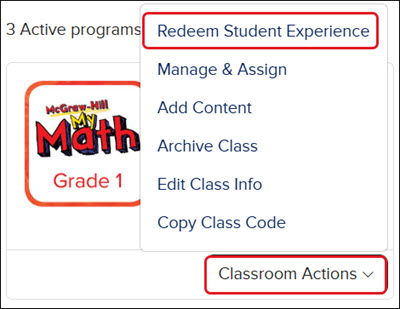
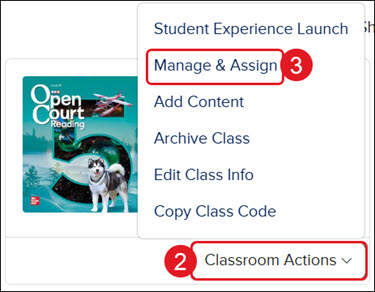
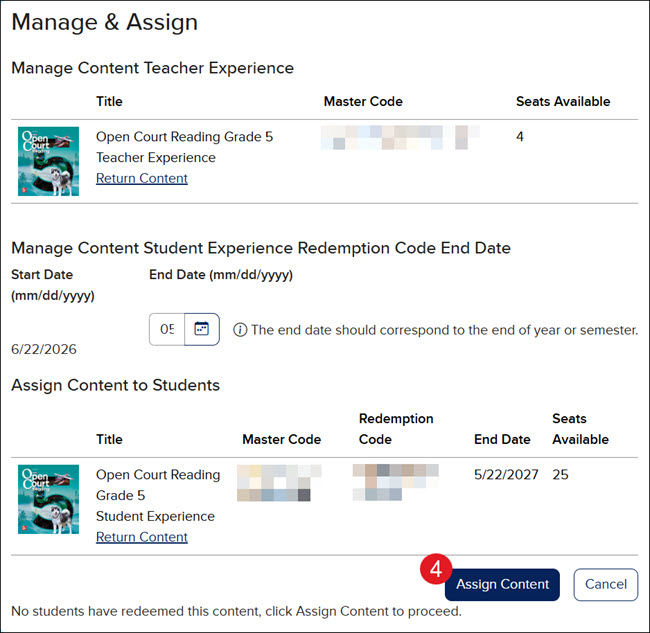
<p><a href="https://hub.mheducation.com/share/jnpzlhi7jdtl" target="_blank">View the demo in a separate tab.</a></p> <p><a href="https://hub.mheducation.com/share/fapn6qkvnlrz" target="_blank">View the Spanish version of the demo.</a></p> <p> </p> <h2 class="fs-5">Article Contents</h2> <p><a href="#assign_access">Assign Student Edition Access</a></p> <p><a href="#remove_access">Remove Student Edition Access</a></p> <p> </p> <h3 class="fs-5"><span style="font-weight: normal; width: 11.0px; overflow: hidden; background-image: url(/libs/clientlibs/granite/richtext/resources/images/anchor.png); background-position: left bottom; background-repeat: no-repeat; height: 12.0px;"><a id="assign_access"></a></span>Assign Student Edition Access</h3> <p>First, teachers will need to create a class for the program. For steps on this process, see the <a href="https://www.mheducation.com/prek-12/support/knowledge/open-learning---create-and-edit-a-class.html" target="_blank">Create and Edit a Class</a> article.</p> <p>An alternative option to the following process is to provide students with the class and/or redemption codes for them to manually redeem the content to their account to gain access to the class and student materials. For steps on this process, refer to the <a href="https://www.mheducation.com/prek-12/support/knowledge/my-mheducation-com-join-a-class.html" target="_blank">How to Join a McGraw Hill Class and Redeem Content</a> article.</p> <p> </p> <ol> <li>SSO or log in at <a href="https://my.mheducation.com/" target="_blank">my.mheducation.com</a>.<br> <br> You will need to <strong><a href="https://www.mheducation.com/content/mheducation/us/en/prek-12/support/knowledge/redeem-a-connected-master-code.html" target="_blank">Redeem the Student Experience</a></strong> first before being able to assign the content to students.<br> <br> <img src="/content/dam/mhe/support/support-images/dts-k12-images/assign-connected-student-edition/assign-ced-se-6.jpg" data-assetref="assign-ced-se-6-1782139346479"><br> <br> </li> <li>On the class card, click on <strong>Classroom Actions</strong>.<br> <br> </li> <li>Click <strong>Manage & Assign</strong> from the menu.<br> <br> <img src="/content/dam/mhe/support/support-images/dts-k12-images/assign-connected-student-edition/assign-ced-se-1.jpg" data-assetref="assign-ced-se-1-1782139341191"><br> <br> </li> <li>Click the <strong>Assign Content</strong> button.<br> <br> <img src="/content/dam/mhe/support/support-images/dts-k12-images/assign-connected-student-edition/assign-ced-se-2.jpg" data-assetref="assign-ced-se-2-1782139355870"><br> <br> </li> <li>Checkmark the box next to the <strong>Student Experience</strong> content.<br> <br> </li> <li>Use the provided <strong>Search Options</strong> to locate the student(s) you need to add to the class.<br> <br> </li> <li>Click the <strong>Search </strong>button.<br> <br> <img src="/content/dam/mhe/support/support-images/dts-k12-images/assign-connected-student-edition/assign-ced-se-3.jpg" data-assetref="assign-ced-se-3-1782139367876"><br> <br> </li> <li>In the <strong>Available Students</strong> section, click the <strong>Add All</strong> or the <strong>Add </strong>button next to each student.<br> <br> A. Use the <strong>Quick filter</strong> search to look for a specific student.<br> <br> <img src="/content/dam/mhe/support/support-images/dts-k12-images/assign-connected-student-edition/assign-ced-se-4.jpg" data-assetref="assign-ced-se-4-1782139376339"><br> <br> B. In the <strong>Selected Students</strong> section, click the <strong>Remove All</strong> or <strong>Remove </strong>button for students who no longer need access to the content.<br> <br> </li> <li>Click the <strong>Assign </strong>button.<br> <br> <img src="/content/dam/mhe/support/support-images/dts-k12-images/assign-connected-student-edition/assign-ced-se-5.jpg" data-assetref="assign-ced-se-5-1782139385546"></li> </ol> <p> </p> <h3 class="fs-5"><span style="font-weight: normal; width: 11.0px; overflow: hidden; background-image: url(/libs/clientlibs/granite/richtext/resources/images/anchor.png); background-position: left bottom; background-repeat: no-repeat; height: 12.0px;"><a id="remove_access"></a></span>Remove Student Edition Access</h3> <p>To remove students from the Student Edition of a ConnectED product, a teacher must do so by going into their teacher account. There currently is not a way for administrators to do so from the administrator tools.</p> <p><strong>Note: </strong>If the class was created by the district, the district administrator will need to remove the content from the students through their automated process.</p> <p>Removing content from a student will not remove any data for them unless you also remove them from the class.</p> <p> </p> <ol> <li>SSO or log in at <a href="https://my.mheducation.com/" target="_blank">my.mheducation.com</a>.<br> <br> </li> <li>Click on <strong>Classroom Actions </strong>for the class.<br> <br> </li> <li>Click <strong>Manage & Assign</strong> from the menu.<br> <br> <img src="/content/dam/mhe/support/support-images/dts-k12-images/manage-student-edition-access/manage-student-access-1.jpg" data-assetref="manage-student-access-1-1787600755099"><br> <br> </li> <li>In the <strong>Take Back Content from Students</strong> section, check the box next to the students you want to remove content from.<br> <br> Checking the box to the left of <strong>Last Name</strong> will checkmark all students currently assigned to the Student Edition.<br> <br> </li> <li>Click the <strong>Take Back Content</strong> button.<br> <br> <img src="/content/dam/mhe/support/support-images/dts-k12-images/manage-student-edition-access/manage-student-access-2.jpg" data-assetref="manage-student-access-2-1787600776857"><br> <br> </li> <li>On the <strong>Confirm return of student content</strong> pop-up, click the <strong>OK </strong>button.<br> <br> <img src="/content/dam/mhe/support/support-images/dts-k12-images/manage-student-edition-access/manage-student-access-3.jpg" data-assetref="manage-student-access-3-1787600812896"></li> </ol> dts Learn how to add and remove student access from ConnectED Student Editions. 2026-08-24 Manage Access to ConnectED Student Edition Learn how to add and remove student access from ConnectED Student Editions. Learn how to add and remove student access from ConnectED Student Editions.
Learn how to add and remove student access from ConnectED Student Editions.
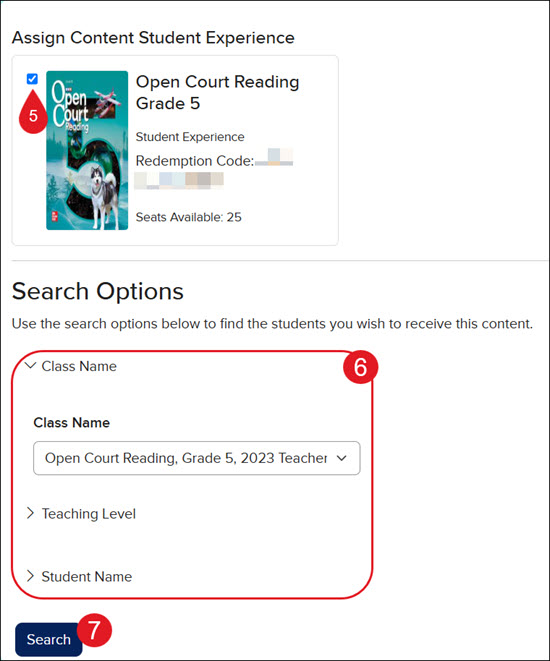
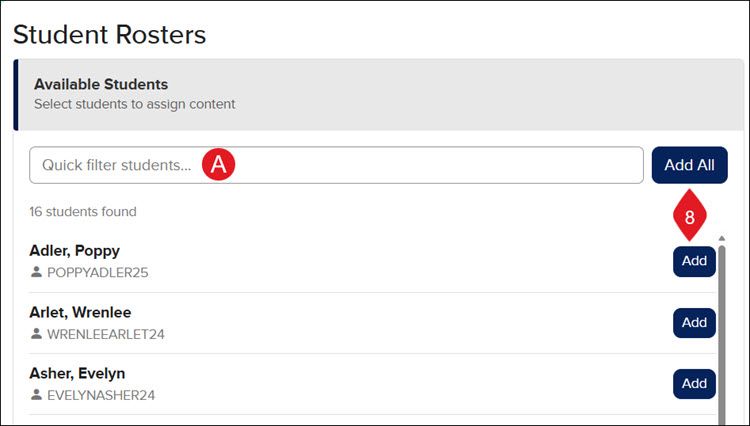
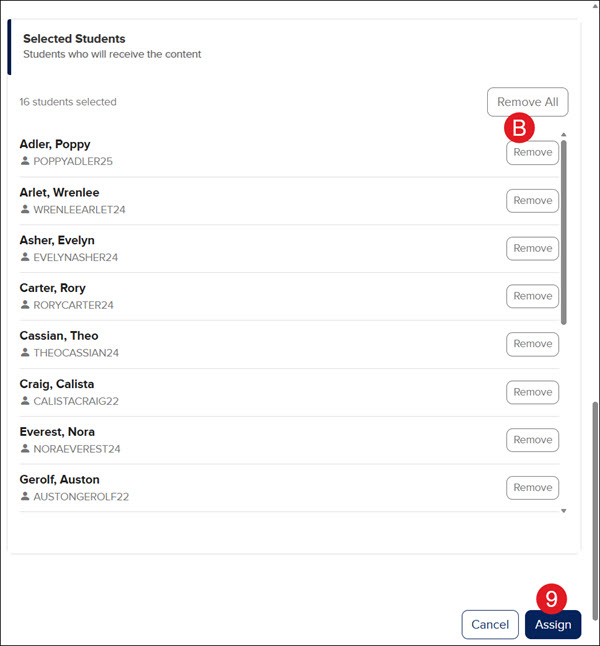
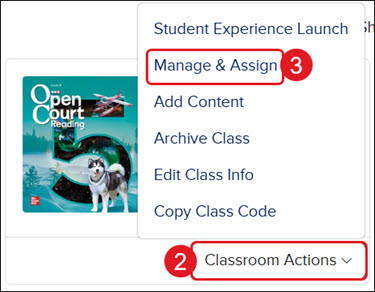
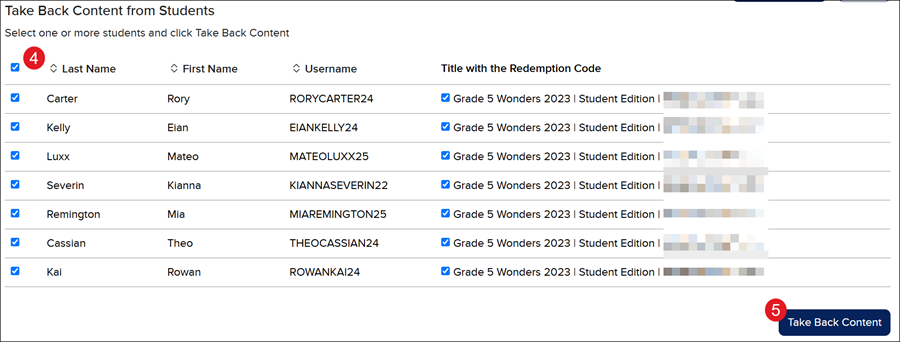
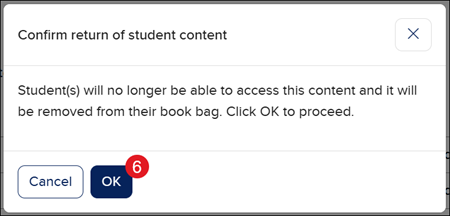
View the demo in a separate tab. View the Spanish version of the demo. Article Contents Assign Student Edition Access Remove Student Edition Access Assign Student Edition Access First, teachers will need to create a class for the program. For steps on this process, see the Create and Edit a Class article. An alternative option to the following process is to provide students with the class and/or redemption codes for them to manually redeem the content to their account to gain access to the class and student materials. For steps on this process, refer to the How to Join a McGraw Hill Class and Redeem Content article. SSO or log in at my.mheducation.com. You will need to Redeem the Student Experience first before being able to assign the content to students. On the class card, click on Classroom Actions. Click Manage & Assign from the menu. Click the Assign Content button. Checkmark the box next to the Student Experience content. Use the provided Search Options to locate the student(s) you need to add to the class. Click the Search button. In the Available Students section, click the Add All or the Add button next to each student. A. Use the Quick filter search to look for a specific student. B. In the Selected Students section, click the Remove All or Remove button for students who no longer need access to the content. Click the Assign button. Remove Student Edition Access To remove students from the Student Edition of a ConnectED product, a teacher must do so by going into their teacher account. There currently is not a way for administrators to do so from the administrator tools. Note: If the class was created by the district, the district administrator will need to remove the content from the students through their automated process. Removing content from a student will not remove any data for them unless you also remove them from the class. SSO or log in at my.mheducation.com. Click on Classroom Actions for the class. Click Manage & Assign from the menu. In the Take Back Content from Students section, check the box next to the students you want to remove content from. Checking the box to the left of Last Name will checkmark all students currently assigned to the Student Edition. Click the Take Back Content button. On the Confirm return of student content pop-up, click the OK button.
dts
Customer Support, PreK-12, Classroom Teacher, Preschool, Elementary School, Middle School, High School, Direct Login & Auto-Rostering, Direct Login & Manual-Rostering, SSO & Auto-Rostering, SSO & Manual-Rostering, Core, Intervention, Supplemental, AP, Honors & Electives, Career & Technical Education, Literacy, Math, Science, Social Studies, Health, Visual & Performing Arts, World Languages, Glencoe Health 2014, McGraw Hill Health 2014, Building Blocks 2015, Connecting Math Concepts, Number Worlds 2015, Corrective Reading, Early Interventions in Reading, Spelling Mastery, WonderWorks 2022 & 2014, Maravillas 2020 & 2017, OCR Foundational Skills Kit, OCR Word Analysis Kit, Open Court Reading 2016, 2018, 2023, StudySync 2015 & 2017, Wonders, Wonders 2014, Wonders 2023 2020 2017, Wonders Balanced Literacy 2016, Wonders EL 2016, World of Wonders 2017, Core Plus Math 2015, Everyday Mathematics 4 (K-6), Glencoe Algebra 1 2014, Glencoe Algebra 1 2018, Glencoe Algebra 2 2014, Glenoce Algebra 2 2018, Glencoe Math, Glencoe Geometry 2014, Glencoe Geometry 2018, Glencoe Math Course 1, Glencoe Math Course 2, Glencoe Math Course 3, Glencoe Math Accelerated, McGraw Hill My Math, McGraw Hill My Math 2013 & 2016, McGraw Hill My Math 2018, Pre-Algebra 2012, Glencoe Science 2017, Glencoe Science, Inspire Science 2017, iScience 2017, Networks, Networks 2014 (K-5), Networks 2014 & 2016, Networks 2018, Music! Its Role, Spotlight on Music, Asi se Dice 2016, Class Management, Back-to-School Setup, Getting Started & Orientation