illustrative-math
impact
5-steps-to-a-5-test-prep
networks
mh-social-studies
glencoe-science
corrective-reading
redbird
early-interventions-in-reading
spotlight-on-music
aleks
spelling-mastery
arrive-math
aleks-adventure
connecting-math-concepts
music-its-role
glencoe-math
2inform
studysync
actively-learn
achieve3000-literacy
wonders
redbird-math
my-math
ocr-foundational-skills-kit
reveal-math
Programs & Solutions
Programs & Solutions/Impact Social Studies
Programs & Solutions/Impact Social Studies/CA Impact 2019
Programs & Solutions/Reading Mastery
Programs & Solutions/Reading Mastery/SRA Reading Mastery Transformations
Programs & Solutions/Illustrative Math
Programs & Solutions/WonderWorks
Programs & Solutions/WonderWorks/WonderWorks 2022 & 2014
Context
Context/Subject
Context/Subject/Visual & Performing Arts
Programs & Solutions/Glencoe Math
Programs & Solutions/Glencoe Math/Glenoce Algebra 2 2018
Programs & Solutions/AP Edition
Programs & Solutions/AP Edition/AP Chemistry
Programs & Solutions/Wonders
Programs & Solutions/Wonders/Wonders Balanced Literacy 2016
Programs & Solutions/StudySync
Programs & Solutions/StudySync/StudySync 2015 & 2017
Context/Integration Type
Context/Integration Type/Direct Login & Auto-Rostering
Programs & Solutions/5 Steps to a 5 - AP Test Prep
Programs & Solutions/Level Up
Programs & Solutions/Level Up/Level Up 9–12
Programs & Solutions/McGraw Hill Math
Programs & Solutions/McGraw Hill Math/Texas Math
Business Unit
Business Unit/PreK-12
Programs & Solutions/Building Blocks
Programs & Solutions/Building Blocks/Building Blocks PreK 2025
Programs & Solutions/McGraw Hill CTE
Programs & Solutions/McGraw Hill CTE/CTE - Early Childhood Education
Programs & Solutions/McGraw Hill My Math
Programs & Solutions/McGraw Hill My Math/McGraw Hill My Math 2013 & 2016
Programs & Solutions/Wonders/Wonders 2023 2020 2017
Programs & Solutions/AP Edition/AP History & Geography
Programs & Solutions/Everyday Mathematics
Programs & Solutions/Everyday Mathematics/Everyday Mathematics 4 (K-6)
Programs & Solutions/Reading Laboratory
Programs & Solutions/Reading Laboratory/SRA Reading Laboratory 2025
Programs & Solutions/Glencoe Math/Glencoe Geometry 2014
Programs & Solutions/Networks
Programs & Solutions/Maravillas
Programs & Solutions/Maravillas/Maravillas 2020 & 2017
Programs & Solutions/Glencoe Math/Glencoe Geometry 2018
Programs & Solutions/World of Wonders
Programs & Solutions/World of Wonders/World of Wonders 2017
Programs & Solutions/McGraw Hill CTE/CTE - Computing and Technology
Programs & Solutions/McGraw Hill Social Studies
Programs & Solutions/Wonders/Wonders EL 2016
Programs & Solutions/McGraw Hill CTE/CTE - Criminal Justice
Programs & Solutions/McGraw Hill Literacy
Programs & Solutions/McGraw Hill Literacy/McGraw Hill Literacy Soar!
Programs & Solutions/Glencoe Health
Programs & Solutions/Glencoe Health/Glencoe Health 2022
Context/Subject/Social Studies
Programs & Solutions/Asi Se Dice
Programs & Solutions/Asi Se Dice/Asi se Dice 2016
Context/Education Level
Context/Education Level/Preschool
Programs & Solutions/Reveal Math (K-12)
Programs & Solutions/Reveal Math (K-12)/CA Reveal Math (K-12)
Programs & Solutions/Glencoe Science
Programs & Solutions/McGraw Hill Science
Programs & Solutions/McGraw Hill Science/TX Science 2025 (K-12)
Programs & Solutions/AP Edition/AP African American Studies
Programs & Solutions/Corrective Reading
Programs & Solutions/McGraw Hill Literacy/McGraw Hill Literacy Summit!
Programs & Solutions/Glencoe Science/Glencoe Science 2017
Programs & Solutions/Glencoe Health/Glencoe Health 2014
Context/Curriculum Type
Context/Curriculum Type/Core
Context/Integration Type/SSO & Manual-Rostering
Programs & Solutions/Redbird
Programs & Solutions/Number Worlds
Programs & Solutions/Number Worlds/Number Worlds 2024
Programs & Solutions/Asi Se Dice/Asi se Dice 2024
Programs & Solutions/Open Court Reading
Programs & Solutions/Open Court Reading/OCR Word Analysis Kit
Context/Integration Type/SSO & Auto-Rostering
Programs & Solutions/Early Interventions in Reading
Programs & Solutions/All Sorts
Programs & Solutions/All Sorts/All Sorts 2026 (K-5)
Programs & Solutions/Number Worlds/Number Worlds 2015
Context/Integration Type/Direct Login & Manual-Rostering
Programs & Solutions/AP Edition/AP Language and Composition
Programs & Solutions/Networks/Networks 2014 (K-5)
Programs & Solutions/AP Edition/AP Statistics
Programs & Solutions/Spotlight on Music
Programs & Solutions/Building Blocks/Building Blocks 2024
Support Topics
Support Topics/Getting Started & Orientation
Support Topics/Getting Started & Orientation/Back-to-School Setup
Programs & Solutions/Glencoe Math/Glencoe Algebra 1 2014
Context/Curriculum Type/Supplemental
Programs & Solutions/Open Court Reading/Open Court Reading 2025
Programs & Solutions/ALEKS
Programs & Solutions/Spelling Mastery
Context/Education Level/High School
Programs & Solutions/AP Edition/AP Computer Science
Programs & Solutions/Teen Health
Programs & Solutions/Teen Health/Teen Health 2021
Programs & Solutions/AP Edition/AP Biology
Programs & Solutions/Glencoe Math/Glencoe Algebra 1 2018
Programs & Solutions/Networks/Networks 2018
Programs & Solutions/Arrive Math
Programs & Solutions/ALEKS Adventure
Programs & Solutions/Inspire Science
Programs & Solutions/Inspire Science/CA Inspire Science 2020
Programs & Solutions/Connecting Math Concepts
Programs & Solutions/Open Court Reading/Open Court Reading 2016, 2018, 2023
Context/Subject/Math
Programs & Solutions/Building Blocks/Building Blocks 2015
Asset Format Type
Asset Format Type/Customer Support
Programs & Solutions/Glencoe Math/Glencoe Algebra 2 2014
Programs & Solutions/Music! Its Role
Programs & Solutions/StudySync/StudySync 2021
Programs & Solutions/AP Edition/AP Music Theory
Context/Curriculum Type/Career & Technical Education
Programs & Solutions/McGraw Hill CTE/CTE - Business, Marketing, and Finance
Programs & Solutions/McGraw Hill Social Studies/FL Social Studies 2024 (K-12)
Programs & Solutions/iScience
Programs & Solutions/iScience/iScience 2017
Context/Subject/Health
Programs & Solutions/2Inform
Programs & Solutions/Wonders/Wonders 2014
Context/Subject/World Languages
Programs & Solutions/Level Up/Level Up 6–8
Context/Subject/Literacy
Personas
Personas/School Educator
Personas/School Educator/Classroom Teacher
Programs & Solutions/McGraw Hill Pre-Algebra
Programs & Solutions/McGraw Hill Pre-Algebra/Pre-Algebra 2012
Context/Curriculum Type/Intervention
Programs & Solutions/AP Edition/AP Economics
Programs & Solutions/Level Up/Level Up K–5
Programs & Solutions/Inspire Science/Inspire Science 2020
Programs & Solutions/McGraw Hill Health
Programs & Solutions/McGraw Hill Health/McGraw Hill Health 2014
Programs & Solutions/McGraw Hill Science/FL Science 2025 (K-12)
Programs & Solutions/McGraw Hill Literacy/McGraw Hill Literacy Emerge!
Programs & Solutions/Actively Learn
Programs & Solutions/Inspire Science/Inspire Science 2017
Programs & Solutions/Core Plus Math
Programs & Solutions/Core Plus Math/Core Plus Math 2015
Context/Education Level/Middle School
Programs & Solutions/McGraw Hill CTE/CTE - Agriculture
Programs & Solutions/Glencoe Math/Glencoe Math Course 1
Programs & Solutions/AP Edition/AP Psychology
Programs & Solutions/Glencoe Math/Glencoe Math Course 2
Programs & Solutions/Glencoe Math/Glencoe Math Course 3
Programs & Solutions/Networks/Networks 2014 & 2016
Context/Subject/Science
Programs & Solutions/Achieve3000 Literacy
Programs & Solutions/AP Edition/AP Public Speaking
Context/Curriculum Type/AP, Honors & Electives
Support Topics/Classroom & Course Management
Support Topics/Classroom & Course Management/Class Management
Programs & Solutions/Redbird Math
Programs & Solutions/McGraw Hill CTE/CTE - Health Science
Context/Education Level/Elementary School
Programs & Solutions/McGraw Hill My Math/McGraw Hill My Math 2018
Programs & Solutions/OCR Foundational Skills Kit
Programs & Solutions/McGraw Hill Science/TN Science (K-12)
Programs & Solutions/McGraw Hill CTE/CTE - Culinary Arts
Programs & Solutions/AP Edition/AP Precalculus
prek-12
2026-06-18T10:20:28.271-04:00
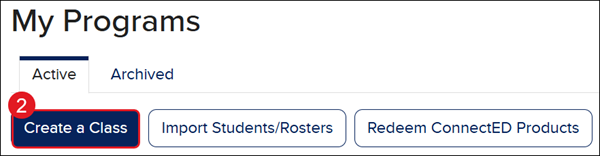
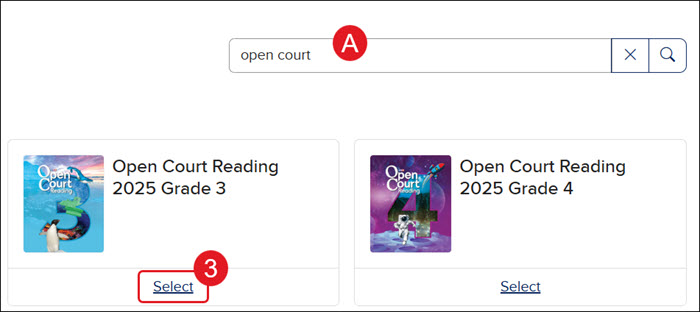
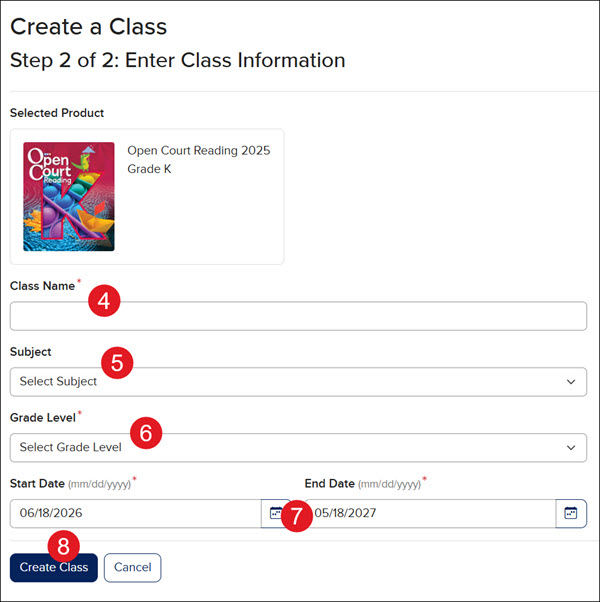
<p><a href="https://hub.mheducation.com/share/y3xqm8mn3ipj">View the demo in a separate tab.</a></p> <p><a href="https://hub.mheducation.com/share/vg0y7tjxjqqd" target="_blank">View the Spanish version of the demo.</a></p> <p> </p> <h2 class="fs-5">Article Contents</h2> <p><a href="#new_class" target="_self">Create a New Class</a></p> <p><a href="#multi_classes">Create Multiple Classes for the Same Program</a></p> <p><a href="#edit_existing" target="_self">Edit an Existing Class</a></p> <p><a href="#class_settings" target="_self">Edit Class Settings</a></p> <p><a href="https://www.mheducation.com/prek-12/support/knowledge/open-learning-platform---manage-class-roster.html" target="_blank">Add and Remove Students from an Open Learning Class Roster</a></p> <p><a href="https://www.mheducation.com/prek-12/support/knowledge/connected---manage-class-roster.html" target="_blank">Add and Remove Students from a ConnectED Class Roster</a></p> <p><a href="https://www.mheducation.com/prek-12/support/knowledge/connected-how-to-assign-student-edition-to-students.html" target="_blank">Assign the ConnectED Student Edition</a></p> <p> </p> <h3 class="fs-5"><a id="new_class"></a>Create a New Class</h3> <ol> <li>SSO or sign in at <a target="_blank" href="https://my.mheducation.com/">my.mheducation.com</a>.<br> <br> If you're assigned to multiple schools, you will need to <a href="/content/mheducation/us/en/prek-12/support/knowledge/how-to-toggle-between-roles-and-orgs.html" target="_blank">toggle to the school</a> you want the class associated with.<br> <br> </li> <li>Click the <strong>Create a Class</strong> button.<br> <br> <img src="/content/dam/mhe/support/support-images/migrated/rtaImage--1711333209.jpeg" data-assetref="rtaImage--1711333209-1779906129109"><br> <br> A. Use the <strong>Search by Product name</strong> field to locate a specific program.<br> <br> </li> <li>Click on the <strong>Select </strong>link for the program.<br> <br> <img src="/content/dam/mhe/support/support-images/dts-k12-images/create-and-edit-class/create-edit-class-1.jpg" data-assetref="create-edit-class-1-1781790830306"><br> <br> </li> <li>Enter a <strong>Class Name</strong>.<br> <br> </li> <li>Select a <strong>Subject </strong>from the drop-down menu.<br> <br> </li> <li>Select a <strong>Grade Level</strong>. This can be different from the grade level the students are assigned to.<br> <br> </li> <li>Select a <strong>Start </strong>and <strong>End Date</strong> for the class.<br> <br> <strong>Note:</strong> Students will be able to access the class three days before the selected start date. We suggest selecting an end date that is the last day of class or close to it.<br> <br> </li> <li>Click the <strong>Create Class</strong> or the <strong>Redeem & Create Class</strong> button.<br> <br> The button depends on the program that is being redeemed to the account.<br> <br> <img src="/content/dam/mhe/support/support-images/dts-k12-images/create-and-edit-class/create-edit-class-2.jpg" data-assetref="create-edit-class-2-1781791028972"></li> </ol> <p> </p> <h3 class="fs-5"><span style="font-weight: normal; width: 11.0px; overflow: hidden; background-image: url(/libs/clientlibs/granite/richtext/resources/images/anchor.png); background-position: left bottom; background-repeat: no-repeat; height: 12.0px;"><a id="multi_classes"></a></span>Create Multiple Classes for the Same Program</h3> <p>This process will vary based on whether you are using an Open Learning program or a ConnectED program.</p> <p> </p> <p><strong>How to identify Open Learning vs ConnectED programs:</strong></p> <p><strong>Open Learning</strong> programs will have <strong>Manage Class Roster</strong> when you click on the <strong>Classroom Actions</strong> button.</p> <p>For Open Learning programs, you'll need to follow the steps in the <a href="#new_class">Create a New Class</a> section for each class you need.</p> <p><img src="/content/dam/mhe/support/support-images/dts-k12-images/create-and-edit-class/create-edit-class-10.jpg" data-assetref="create-edit-class-10-1789660159879"></p> <p> </p> <p><strong>ConnectED </strong>programs will have <strong>Manage & Assign</strong> when you click on the <strong>Classroom Actions </strong>button.</p> <p>For ConnectED programs, create your <strong>first class</strong> by following the <a href="#new_class">Create a New Class</a> steps. For <strong>each additional class</strong>, follow the steps below.</p> <p><img src="/content/dam/mhe/support/support-images/dts-k12-images/create-and-edit-class/create-edit-class-11.jpg" data-assetref="create-edit-class-11-1789660282499"></p> <p> </p> <p>These steps will vary based on the ConnectED program you are using.</p> <ol> <li>Click on your class card to open your <strong>Teacher Edition</strong>.<br> <br> </li> <li>Click on <strong>Menu </strong>at the top left.<br> <br> </li> <li>Click on <strong>Class Management</strong>.<br> <br> <img src="/content/dam/mhe/support/support-images/dts-k12-images/create-and-edit-class/create-edit-class-12.jpg" data-assetref="create-edit-class-12-1789661273391"><br> <br> For <em><strong>Wonders</strong></em>, hover over <strong>Manage & Assign</strong> and click <strong>Class Details</strong> from the menu.<br> <br> <img src="/content/dam/mhe/support/support-images/dts-k12-images/create-and-edit-class/create-edit-class-13.jpg" data-assetref="create-edit-class-13-1789661342106"><br> <br> For <strong>Networks</strong>, click on <strong>Manage & Assign</strong> and then <strong>My Classes</strong>.<br> <br> <img src="/content/dam/mhe/support/support-images/dts-k12-images/create-and-edit-class/create-edit-class-14.jpg" data-assetref="create-edit-class-14-1789661423549"><br> <br> </li> <li>Click the <strong>Create Class</strong> or <strong>Add Class </strong>button.<br> <br> <img src="/content/dam/mhe/support/support-images/dts-k12-images/create-and-edit-class/create-edit-class-15.jpg" data-assetref="create-edit-class-15-1789661543197"><br> <br> </li> <li>Enter a <strong>Class Name</strong>.<br> <br> </li> <li>If assigned to multiple schools, select the correct <strong>School </strong>from the drop-down.<br> <br> </li> <li>Select the <strong>Grade Level</strong>.<br> <br> A. Check the <strong>Use Simplified Login for this class</strong> if the students are to use pictorial passwords instead of a username and password.<br> <br> </li> <li>Click the <strong>Save </strong>button.<br> <br> <img src="/content/dam/mhe/support/support-images/dts-k12-images/create-and-edit-class/create-edit-class-16.jpg" data-assetref="create-edit-class-16-1789661768469"><br> <br> The new class will show within your <strong>Teacher Edition</strong> as well as on your <strong>My Programs</strong> page.</li> </ol> <p> </p> <h3 class="fs-5"><a id="edit_existing"></a>Edit an Existing Class</h3> <ol> <li>On the <strong>My Programs</strong> page, click the <strong>Classroom Actions</strong> button for the class.<br> <br> </li> <li>Click on <strong>Edit Class Info</strong> from the menu.<br> <br> <img src="/content/dam/mhe/support/support-images/dts-k12-images/create-and-edit-class/create-edit-class-3.jpg" data-assetref="create-edit-class-3-1781791657967"><br> <br> </li> <li>Make any preferred changes.<br> <br> <strong>Note:</strong> If the <strong>Start Date</strong> of the class has passed and you need to select a new one, you have to <a href="#new_class" target="_self">create a new class</a>.<br> <br> </li> <li>Click the <strong>Save </strong>button.<br> <br> <img src="/content/dam/mhe/support/support-images/dts-k12-images/create-and-edit-class/create-edit-class-4.jpg" data-assetref="create-edit-class-4-1781791968896"><br> <br> If you're associated with a <a href="/content/mheducation/us/en/prek-12/support/knowledge/access-service-descriptions.html" target="_blank">managed district</a>, for any classes created by your district that are active, you will only be able to change the <strong>Display Name</strong> for the class.<br> <br> <img src="/content/dam/mhe/support/support-images/dts-k12-images/create-and-edit-class/create-edit-class-8.jpg" data-assetref="create-edit-class-8-1781794721951"></li> </ol> <p> </p> <h3 class="fs-5"><a id="class_settings"></a>Edit Class Settings</h3> <p>These steps are only available for Open Learning programs. Refer to the <a href="https://www.mheducation.com/prek-12/support/knowledge/introducing-my-mheducation-com.html" target="_blank">Identifying My Learning Environment</a> article to review the different programs available.</p> <ol> <li>On the <strong>My Programs</strong> page, click the <strong>Classroom Actions</strong> button for the class.<br> <br> </li> <li>Click on <strong>Manage Class Roster</strong> from the menu.<br> <br> <img src="/content/dam/mhe/support/support-images/dts-k12-images/create-and-edit-class/create-edit-class-5.jpg" data-assetref="create-edit-class-5-1781797122238"><br> <br> You can also click on the class and then click on <strong>Roster </strong>from the navigation menu.<br> <br> <img src="/content/dam/mhe/support/support-images/dts-k12-images/create-and-edit-class/create-edit-class-6.jpg" data-assetref="create-edit-class-6-1781792439198"><br> <br> </li> <li>On the <strong>Roster </strong>page, click the <strong>Settings </strong>button.<br> <br> </li> <li>Make preferred changes.<br> <br> A. For information on the <strong>Copy Class</strong> option, refer to the <a href="https://www.mheducation.com/prek-12/support/knowledge/open-learning---copy-a-class" target="_blank">Copy an Open Learning Class</a> article.<br> <br> B. For additional information on enabling <strong>Simplified Login</strong>, refer to the <a href="https://www.mheducation.com/prek-12/support/knowledge/open-learning-platform-disable-simplified-login-page" target="_blank">Enable or Disable Open Learning Simplified Login</a> article.<br> <br> </li> <li>Click the <strong>Save</strong> button.<br> <br> <img src="/content/dam/mhe/support/support-images/dts-k12-images/create-and-edit-class/create-edit-class-7.jpg" data-assetref="create-edit-class-7-1781792562575"></li> </ol> dts Steps on how to create and customize new classes. 2026-09-17 Create and Edit a Class Steps on how to create and customize new classes. Steps on how to create and customize new classes.
Steps on how to create and customize new classes.
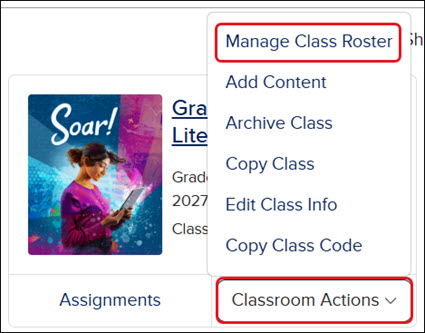
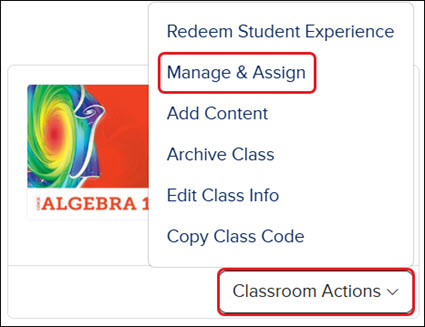
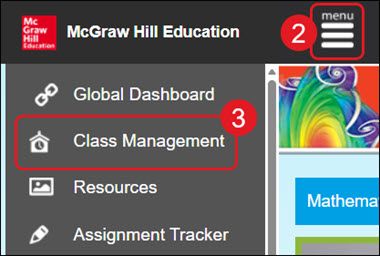
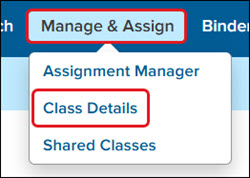
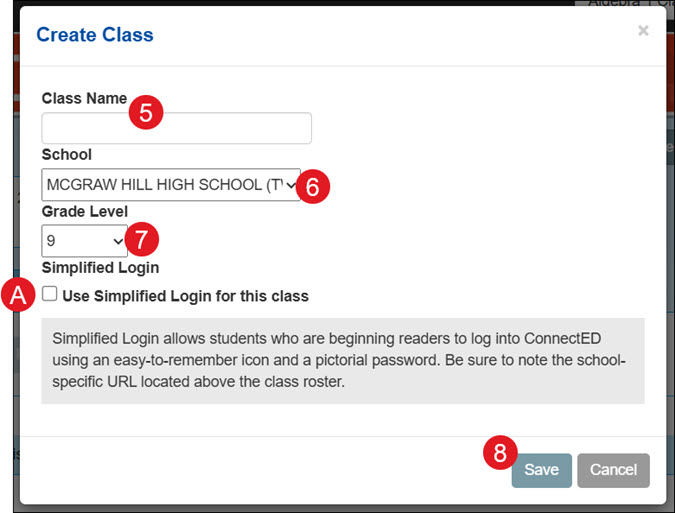
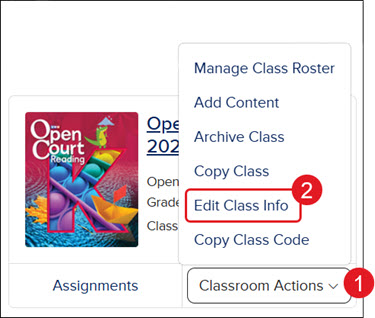
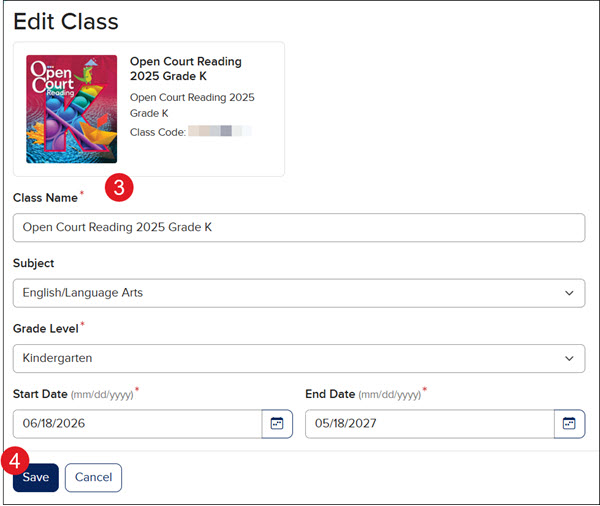
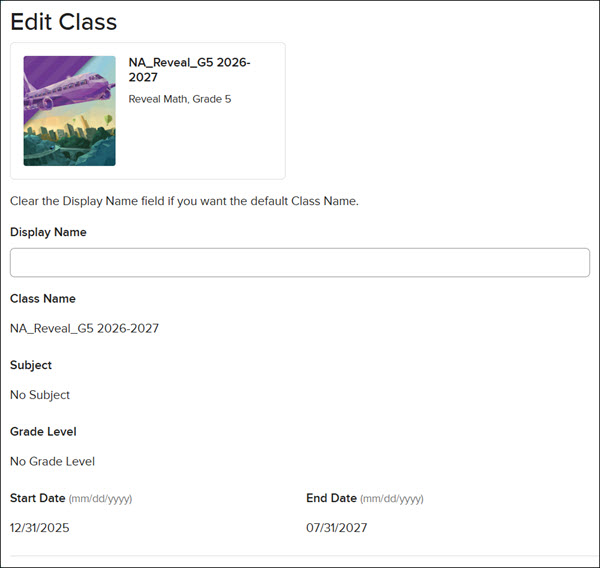
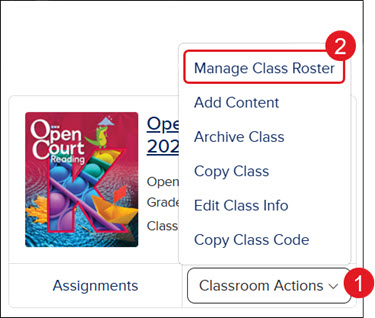
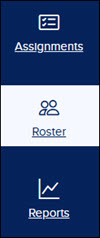
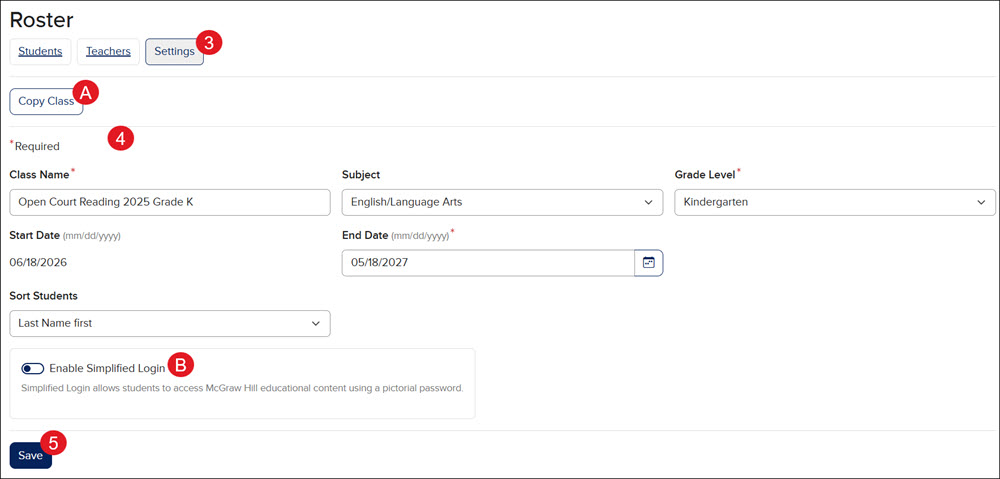
View the demo in a separate tab. View the Spanish version of the demo. Article Contents Create a New Class Create Multiple Classes for the Same Program Edit an Existing Class Edit Class Settings Add and Remove Students from an Open Learning Class Roster Add and Remove Students from a ConnectED Class Roster Assign the ConnectED Student Edition Create a New Class SSO or sign in at my.mheducation.com. If you're assigned to multiple schools, you will need to toggle to the school you want the class associated with. Click the Create a Class button. A. Use the Search by Product name field to locate a specific program. Click on the Select link for the program. Enter a Class Name. Select a Subject from the drop-down menu. Select a Grade Level. This can be different from the grade level the students are assigned to. Select a Start and End Date for the class. Note: Students will be able to access the class three days before the selected start date. We suggest selecting an end date that is the last day of class or close to it. Click the Create Class or the Redeem & Create Class button. The button depends on the program that is being redeemed to the account. Create Multiple Classes for the Same Program This process will vary based on whether you are using an Open Learning program or a ConnectED program. How to identify Open Learning vs ConnectED programs: Open Learning programs will have Manage Class Roster when you click on the Classroom Actions button. For Open Learning programs, you'll need to follow the steps in the Create a New Class section for each class you need. ConnectED programs will have Manage & Assign when you click on the Classroom Actions button. For ConnectED programs, create your first class by following the Create a New Class steps. For each additional class, follow the steps below. These steps will vary based on the ConnectED program you are using. Click on your class card to open your Teacher Edition. Click on Menu at the top left. Click on Class Management. For Wonders, hover over Manage & Assign and click Class Details from the menu. For Networks, click on Manage & Assign and then My Classes. Click the Create Class or Add Class button. Enter a Class Name. If assigned to multiple schools, select the correct School from the drop-down. Select the Grade Level. A. Check the Use Simplified Login for this class if the students are to use pictorial passwords instead of a username and password. Click the Save button. The new class will show within your Teacher Edition as well as on your My Programs page. Edit an Existing Class On the My Programs page, click the Classroom Actions button for the class. Click on Edit Class Info from the menu. Make any preferred changes. Note: If the Start Date of the class has passed and you need to select a new one, you have to create a new class. Click the Save button. If you're associated with a managed district, for any classes created by your district that are active, you will only be able to change the Display Name for the class. Edit Class Settings These steps are only available for Open Learning programs. Refer to the Identifying My Learning Environment article to review the different programs available. On the My Programs page, click the Classroom Actions button for the class. Click on Manage Class Roster from the menu. You can also click on the class and then click on Roster from the navigation menu. On the Roster page, click the Settings button. Make preferred changes. A. For information on the Copy Class option, refer to the Copy an Open Learning Class article. B. For additional information on enabling Simplified Login, refer to the Enable or Disable Open Learning Simplified Login article. Click the Save button.
dts
Customer Support, PreK-12, Classroom Teacher, Preschool, Elementary School, Middle School, High School, Direct Login & Auto-Rostering, Direct Login & Manual-Rostering, SSO & Auto-Rostering, SSO & Manual-Rostering, Core, Intervention, Supplemental, AP, Honors & Electives, Career & Technical Education, Literacy, Math, Science, Social Studies, Health, Visual & Performing Arts, World Languages, AP Biology, AP Chemistry, AP History & Geography, AP Psychology, AP Economics, AP African American Studies, AP Precalculus, AP Statistics, AP Computer Science, AP Language and Composition, AP Public Speaking, AP Music Theory, 5 Steps to a 5 - AP Test Prep, Glencoe Health 2022, Teen Health 2021, Arrive Math, Building Blocks 2024, Building Blocks PreK 2025, Number Worlds 2024, SRA Reading Laboratory 2025, SRA Reading Mastery Transformations, Achieve3000 Literacy, Actively Learn, McGraw Hill Literacy Emerge!, McGraw Hill Literacy Summit!, McGraw Hill Literacy Soar!, Open Court Reading 2025, Redbird, StudySync 2021, ALEKS, ALEKS Adventure, CA Reveal Math (K-12), Illustrative Math, Redbird Math, Reveal Math (K-12), CA Inspire Science 2020, FL Science 2025 (K-12), Inspire Science 2020, TN Science (K-12), TX Science 2025 (K-12), CA Impact 2019, FL Social Studies 2024 (K-12), Impact Social Studies, McGraw Hill Social Studies, All Sorts 2026 (K-5), Asi se Dice 2024, CTE - Business, Marketing, and Finance, CTE - Health Science, CTE - Computing and Technology, CTE - Agriculture, CTE - Culinary Arts, CTE - Early Childhood Education, CTE - Criminal Justice, Glencoe Health 2014, McGraw Hill Health 2014, 2Inform, Building Blocks 2015, Connecting Math Concepts, Number Worlds 2015, Corrective Reading, Early Interventions in Reading, Spelling Mastery, WonderWorks 2022 & 2014, Maravillas 2020 & 2017, OCR Foundational Skills Kit, OCR Word Analysis Kit, Open Court Reading 2016, 2018, 2023, StudySync, StudySync 2015 & 2017, Wonders, Wonders 2014, Wonders 2023 2020 2017, Wonders Balanced Literacy 2016, Wonders EL 2016, World of Wonders 2017, Core Plus Math 2015, Everyday Mathematics 4 (K-6), Glencoe Algebra 1 2014, Glencoe Algebra 1 2018, Glencoe Algebra 2 2014, Glenoce Algebra 2 2018, Glencoe Math, Glencoe Geometry 2014, Glencoe Geometry 2018, Glencoe Math Course 1, Glencoe Math Course 2, Glencoe Math Course 3, McGraw Hill My Math, McGraw Hill My Math 2013 & 2016, McGraw Hill My Math 2018, Pre-Algebra 2012, Glencoe Science 2017, Glencoe Science, Inspire Science 2017, iScience 2017, Networks, Networks 2014 (K-5), Networks 2014 & 2016, Networks 2018, Music! Its Role, Spotlight on Music, Asi se Dice 2016, Texas Math, Level Up K–5, Level Up 6–8, Level Up 9–12, Class Management, Getting Started & Orientation, Back-to-School Setup