illustrative-math
impact
arrive-math
5-steps-to-a-5-test-prep
music-its-role
mh-social-studies
actively-learn
ocr-foundational-skills-kit
spotlight-on-music
reveal-math
Programs & Solutions
Programs & Solutions/Impact Social Studies
Programs & Solutions/Impact Social Studies/CA Impact 2019
Programs & Solutions/Reading Mastery
Programs & Solutions/Reading Mastery/SRA Reading Mastery Transformations
Context
Context/Curriculum Type
Context/Curriculum Type/Supplemental
Programs & Solutions/Open Court Reading
Programs & Solutions/Open Court Reading/Open Court Reading 2025
Programs & Solutions/Illustrative Math
Context/Subject
Context/Subject/Visual & Performing Arts
Context/Education Level
Context/Education Level/High School
Programs & Solutions/AP Edition
Programs & Solutions/AP Edition/AP Computer Science
Programs & Solutions/Teen Health
Programs & Solutions/Teen Health/Teen Health 2021
Support Topics
Support Topics/Assessments & Reporting
Support Topics/Assessments & Reporting/Assignment Sync & Grade Passback
Programs & Solutions/AP Edition/AP Biology
Programs & Solutions/AP Edition/AP Chemistry
Programs & Solutions/Wonders
Programs & Solutions/Wonders/Wonders Balanced Literacy 2016
Programs & Solutions/Networks
Programs & Solutions/Networks/Networks 2018
Programs & Solutions/Arrive Math
Programs & Solutions/5 Steps to a 5 - AP Test Prep
Programs & Solutions/Inspire Science
Programs & Solutions/Inspire Science/CA Inspire Science 2020
Programs & Solutions/McGraw Hill Math
Programs & Solutions/McGraw Hill Math/Texas Math
Context/Subject/Math
Programs & Solutions/Open Court Reading/Open Court Reading 2016, 2018, 2023
Asset Format Type
Asset Format Type/Customer Support
Business Unit
Business Unit/PreK-12
Programs & Solutions/Building Blocks
Programs & Solutions/Building Blocks/Building Blocks PreK 2025
Programs & Solutions/McGraw Hill CTE
Programs & Solutions/McGraw Hill CTE/CTE - Early Childhood Education
Programs & Solutions/Music! Its Role
Programs & Solutions/Wonders/Wonders 2023 2020 2017
Programs & Solutions/AP Edition/AP History & Geography
Programs & Solutions/Reading Laboratory
Programs & Solutions/Reading Laboratory/SRA Reading Laboratory 2025
Programs & Solutions/StudySync
Programs & Solutions/StudySync/StudySync 2021
Programs & Solutions/AP Edition/AP Music Theory
Programs & Solutions/Maravillas
Programs & Solutions/Maravillas/Maravillas 2020 & 2017
Support Topics/Tools & Product Integrations
Support Topics/Tools & Product Integrations/Schoology®
Context/Curriculum Type/Career & Technical Education
Programs & Solutions/McGraw Hill CTE/CTE - Business, Marketing, and Finance
Programs & Solutions/McGraw Hill CTE/CTE - Computing and Technology
Programs & Solutions/McGraw Hill Social Studies
Programs & Solutions/McGraw Hill Social Studies/FL Social Studies 2024 (K-12)
Programs & Solutions/McGraw Hill CTE/CTE - Criminal Justice
Programs & Solutions/McGraw Hill Literacy
Programs & Solutions/McGraw Hill Literacy/McGraw Hill Literacy Soar!
Programs & Solutions/Glencoe Health
Programs & Solutions/Glencoe Health/Glencoe Health 2022
Support Topics/Assessments & Reporting/Grades & Assignments
Context/Subject/Health
Context/Subject/Social Studies
Context/Subject/World Languages
Context/Subject/Literacy
Personas
Personas/School Educator
Personas/School Educator/Classroom Teacher
Context/Education Level/Preschool
Programs & Solutions/Reveal Math (K-12)
Programs & Solutions/Reveal Math (K-12)/CA Reveal Math (K-12)
Context/Curriculum Type/Intervention
Programs & Solutions/AP Edition/AP Economics
Programs & Solutions/McGraw Hill Science
Programs & Solutions/McGraw Hill Science/TX Science 2025 (K-12)
Programs & Solutions/Inspire Science/Inspire Science 2020
Programs & Solutions/AP Edition/AP African American Studies
Programs & Solutions/McGraw Hill Science/FL Science 2025 (K-12)
Programs & Solutions/Actively Learn
Programs & Solutions/McGraw Hill Literacy/McGraw Hill Literacy Emerge!
Programs & Solutions/McGraw Hill Literacy/McGraw Hill Literacy Summit!
Support Topics/User Guides & Account Management
Support Topics/User Guides & Account Management/User Guide
Context/Curriculum Type/Core
Context/Education Level/Middle School
Programs & Solutions/McGraw Hill CTE/CTE - Agriculture
Programs & Solutions/AP Edition/AP Psychology
Programs & Solutions/Number Worlds
Programs & Solutions/Number Worlds/Number Worlds 2024
Context/Subject/Science
Programs & Solutions/AP Edition/AP Public Speaking
Context/Integration Type
Context/Integration Type/SSO & Auto-Rostering
Programs & Solutions/Asi Se Dice
Programs & Solutions/Asi Se Dice/Asi se Dice 2024
Programs & Solutions/Open Court Reading/OCR Word Analysis Kit
Context/Curriculum Type/AP, Honors & Electives
Context/Education Level/Elementary School
Programs & Solutions/McGraw Hill CTE/CTE - Health Science
Programs & Solutions/McGraw Hill My Math
Programs & Solutions/McGraw Hill My Math/McGraw Hill My Math 2018
Programs & Solutions/All Sorts
Programs & Solutions/All Sorts/All Sorts 2026 (K-5)
Programs & Solutions/AP Edition/AP Language and Composition
Programs & Solutions/OCR Foundational Skills Kit
Programs & Solutions/AP Edition/AP Statistics
Programs & Solutions/McGraw Hill Science/TN Science (K-12)
Programs & Solutions/AP Edition/AP Precalculus
Programs & Solutions/McGraw Hill CTE/CTE - Culinary Arts
Programs & Solutions/Spotlight on Music
Programs & Solutions/Building Blocks/Building Blocks 2024
prek-12
2026-03-24T19:03:40.463-03:00
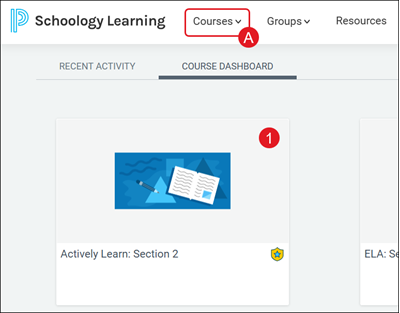
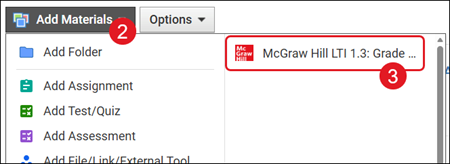
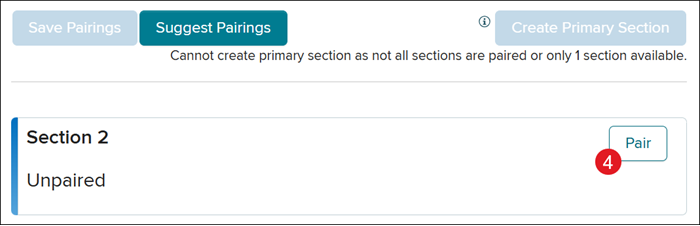
<p><a href="https://hub.mheducation.com/share/iowupfuj4anj" target="_blank">View the demo in a separate tab.</a></p> <p><a href="https://hub.mheducation.com/share/ypemlmrieu2n" target="_blank">View the Spanish version of the demo.</a></p> <p><a href="/content/dam/mhe/support/support-pdfs/dts-k12-pdfs/schoology-asgpb-quick-start-guide.pdf" target="_blank">View a PDF copy of the article.</a></p> <p> </p> <p>This Quick-Start Guide walks teachers through the initial pairing of their McGraw Hill classes with Schoology, allowing them to create and share assignments within Schoology for their McGraw Hill programs.</p> <p> </p> <p>The <strong>McGraw Hill LTI® 1.3 Link: Grades and Assignment Integration</strong> tool syncs assignments and grades between the programs hosted on the McGraw Hill platform and your Schoology® Learning Management System (LMS).</p> <p>Prior to syncing assignments and grades between your McGraw Hill classes and Schoology, you need to pair your class(es). Your McGraw Hill class is automatically generated by your district's nightly roster file sent to McGraw Hill.</p> <p><strong>Note:</strong> If you plan to use <strong><em>section linking</em></strong> for your classes, this <em><strong>must </strong></em>be done before completing the class pairing steps. However, additional classes can be added and paired in the future as necessary.</p> <p>1. On the <strong>Course Dashboard</strong>, click on the course tile, or select the class from the <strong>Courses </strong>(A) drop-down. </p> <p><img src="/content/dam/mhe/support/support-images/migrated/rtaImage--1408830404.jpeg" data-assetref="rtaImage--1408830404-1775250810110"></p> <p>2. Click the<strong> Add Materials</strong> drop-down. </p> <p>3. Click on <strong>McGraw Hill LTI 1.3:</strong> <strong>Grade and Assignment Integration </strong>from the menu.</p> <p><strong>Note:</strong> Installation of this app is completed by your District Administrator. If you do not see the app, please reach out to your District Administrator or Curriculum Coordinator. </p> <p><img src="/content/dam/mhe/support/support-images/migrated/rtaImage--1408791133.jpeg" data-assetref="rtaImage--1408791133-1775250810110"></p> <p>4. Click <strong>Pair </strong>to the right of the course tile.</p> <p><span><strong>Important!</strong></span> Make sure to only click Pair on the course tile that matches the course you selected.</p> <p><img src="/content/dam/mhe/support/support-images/migrated/rtaImage--1408829763.jpeg" data-assetref="rtaImage--1408829763-1775250810110"></p> <p>5. On the <strong>Course </strong>section pop-up, click <strong>Select </strong>on the course tile that matches the course you selected.</p> <p>Complete these steps for every class that needs to be paired with the course you selected.</p> <p><img src="/content/dam/mhe/support/support-images/migrated/rtaImage--1408828665.jpeg" data-assetref="rtaImage--1408828665-1775250810110"></p> <p> </p> <p><strong>Alternative Option: Smart Pairing</strong></p> <p>Some schools may have access to the <strong>Suggest Pairings<em> </em></strong>(B) option. This button will automatically pair your classes to the selected course. </p> <p>If you do not have the button available, this means your district does not have a matching identifier between your McGraw Hill classes and your Schoology classes. You will need to reach out to your district IT team to further inquire about this new feature.</p> <p><strong>If using this option:</strong></p> <ul> <li>Once your classes are paired, verify that the correct classes are linked to the course by scrolling through the list of classes on the pop-up.</li> <li>If a class was incorrectly paired, follow the <a href="/content/mheducation/us/en/prek-12/support/knowledge/assignment-sync-and-grade-passback-with-schoology" target="_blank">Unpairing Classes</a> steps.</li> </ul> <p><img src="/content/dam/mhe/support/support-images/migrated/rtaImage--1408829940.jpeg" data-assetref="rtaImage--1408829940-1775250810110"></p> <p>6. Click the <strong>Save Pairings</strong> button.</p> <p>C. If you would like to start over with pairing classes to the selected course, click the<strong> Click to Unpair this course section</strong> link.</p> <p><img src="/content/dam/mhe/support/support-images/migrated/rtaImage--1408827534.jpeg" data-assetref="rtaImage--1408827534-1775250810110"></p> <p> </p> <p><img src="/content/dam/mhe/support/support-images/migrated/rtaImage--1408826561.jpeg" data-assetref="rtaImage--1408826561-1775250810110"></p> <p><span><strong>Stop and Double Check!</strong></span> Take time to double check and ensure your class pairings are correct before moving on. Incorrect class pairings, and any resulting issues, is a common issue.</p> <p> </p> <p><img src="/content/dam/mhe/support/support-images/migrated/rtaImage--1408825858.jpeg" data-assetref="rtaImage--1408825858-1775250810110"></p> <p>7. Click the <strong>Create Primary Section</strong> button.</p> <p>This will create an empty class within Actively Learn with "<strong>Schoology® Course</strong>" affixed to the title of the class. This class <em><strong>will not have any students rostered</strong></em> to it but will serve as the <em><strong>primary class for <a href="#create_assignments" target="_self">creating assignments</a></strong></em>.</p> <p><span><strong>Important!</strong></span> Do not archive the primary section or any of your classes on the McGraw Hill platform. Archiving these classes will prevent the integration between your McGraw Hill classes and Schoology classes from functioning properly.</p> <p><img src="/content/dam/mhe/support/support-images/migrated/rtaImage--1408825707.jpeg" data-assetref="rtaImage--1408825707-1775250810111"></p> <p>8. Click the <strong>Launch Primary Section</strong> button to create assignments.</p> <p><img src="/content/dam/mhe/support/support-images/migrated/rtaImage--1408829530.jpeg" data-assetref="rtaImage--1408829530-1775250810111"></p> <p><a id="create_assignments"></a>Your options on this screen may vary depending on the program you are using:</p> <ul> <li><strong> <a href="/content/mheducation/us/en/prek-12/support/knowledge/assignment-sync-and-grade-passback-with-schoology" target="_blank">Wonders and Open Court Reading</a> </strong>> Create Custom Assignments</li> <li><strong> <a href="/content/mheducation/us/en/prek-12/support/knowledge/studysync-assignment-sync-grade-passback-schoology" target="_blank">StudySync</a> </strong>> Add StudySync Assignments</li> <li> <strong><a href="/content/mheducation/us/en/prek-12/support/knowledge/actively-learn-assignment-sync-and-grade-passback-with-schoology" target="_blank">Actively Learn</a> </strong>> Add Actively Learn Assignments</li> <li> <strong><a href="/content/mheducation/us/en/prek-12/support/knowledge/assignment-sync-and-grade-passback-with-schoology" target="_blank">All other Programs</a> </strong>> Add Pre-Built Assignments and Create Custom Assignments</li> </ul> <p><img src="/content/dam/mhe/support/support-images/migrated/rtaImage--1408826691.jpeg" data-assetref="rtaImage--1408826691-1775250810111"></p> dts Quick Start Guide For ASGPB Schoology — step-by-step guidance for Schoology, including key requirements, tips, and troubleshooting where needed. 2026-06-16 Quick Start Guide for Schoology® Assignment Sync & Grade Passback Quick Start Guide For ASGPB Schoology — step-by-step guidance for Schoology, including key requirements, tips, and troubleshooting where needed. Follow the quick start guide to set up Assignment Sync and Grade Passback for Schoology®.
Follow the quick start guide to set up Assignment Sync and Grade Passback for Schoology®.
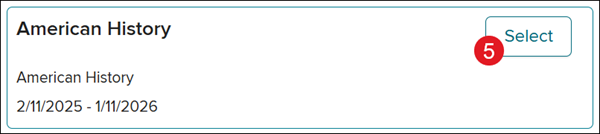
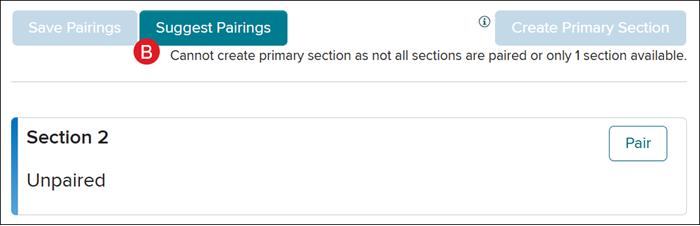
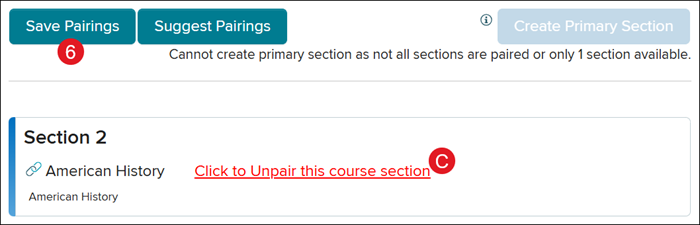
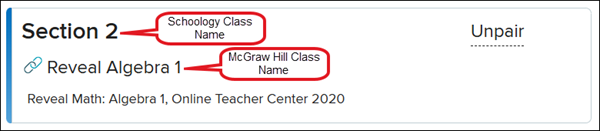
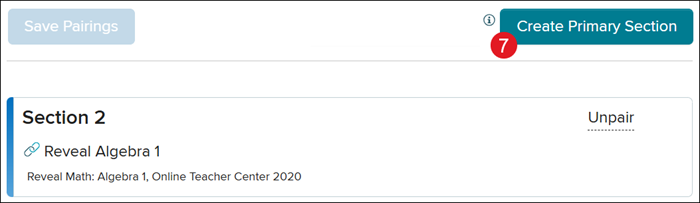
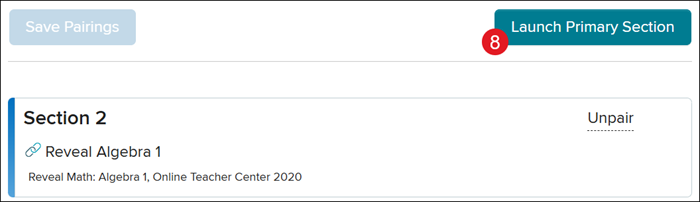
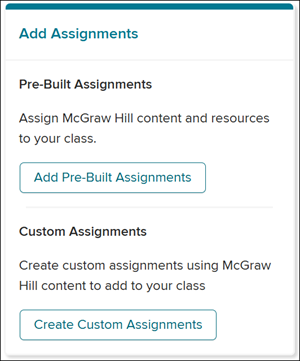
View the demo in a separate tab. View the Spanish version of the demo. View a PDF copy of the article. This Quick-Start Guide walks teachers through the initial pairing of their McGraw Hill classes with Schoology, allowing them to create and share assignments within Schoology for their McGraw Hill programs. The McGraw Hill LTI® 1.3 Link: Grades and Assignment Integration tool syncs assignments and grades between the programs hosted on the McGraw Hill platform and your Schoology® Learning Management System (LMS). Prior to syncing assignments and grades between your McGraw Hill classes and Schoology, you need to pair your class(es). Your McGraw Hill class is automatically generated by your district's nightly roster file sent to McGraw Hill. Note: If you plan to use section linking for your classes, this must be done before completing the class pairing steps. However, additional classes can be added and paired in the future as necessary. 1. On the Course Dashboard, click on the course tile, or select the class from the Courses (A) drop-down. 2. Click the Add Materials drop-down. 3. Click on McGraw Hill LTI 1.3: Grade and Assignment Integration from the menu. Note: Installation of this app is completed by your District Administrator. If you do not see the app, please reach out to your District Administrator or Curriculum Coordinator. 4. Click Pair to the right of the course tile. Important! Make sure to only click Pair on the course tile that matches the course you selected. 5. On the Course section pop-up, click Select on the course tile that matches the course you selected. Complete these steps for every class that needs to be paired with the course you selected. Alternative Option: Smart Pairing Some schools may have access to the Suggest Pairings (B) option. This button will automatically pair your classes to the selected course. If you do not have the button available, this means your district does not have a matching identifier between your McGraw Hill classes and your Schoology classes. You will need to reach out to your district IT team to further inquire about this new feature. If using this option: Once your classes are paired, verify that the correct classes are linked to the course by scrolling through the list of classes on the pop-up. If a class was incorrectly paired, follow the Unpairing Classes steps. 6. Click the Save Pairings button. C. If you would like to start over with pairing classes to the selected course, click the Click to Unpair this course section link. Stop and Double Check! Take time to double check and ensure your class pairings are correct before moving on. Incorrect class pairings, and any resulting issues, is a common issue. 7. Click the Create Primary Section button. This will create an empty class within Actively Learn with "Schoology® Course" affixed to the title of the class. This class will not have any students rostered to it but will serve as the primary class for creating assignments. Important! Do not archive the primary section or any of your classes on the McGraw Hill platform. Archiving these classes will prevent the integration between your McGraw Hill classes and Schoology classes from functioning properly. 8. Click the Launch Primary Section button to create assignments. Your options on this screen may vary depending on the program you are using: Wonders and Open Court Reading > Create Custom Assignments StudySync > Add StudySync Assignments Actively Learn > Add Actively Learn Assignments All other Programs > Add Pre-Built Assignments and Create Custom Assignments
dts
PreK-12, Customer Support, Classroom Teacher, Preschool, Elementary School, Middle School, High School, SSO & Auto-Rostering, Core, Intervention, Supplemental, AP, Honors & Electives, Career & Technical Education, Literacy, Math, Science, Social Studies, Health, Visual & Performing Arts, World Languages, AP Biology, AP Chemistry, AP History & Geography, AP Psychology, AP Economics, AP African American Studies, AP Precalculus, AP Statistics, AP Computer Science, AP Language and Composition, AP Public Speaking, AP Music Theory, 5 Steps to a 5 - AP Test Prep, Glencoe Health 2022, Teen Health 2021, Arrive Math, Building Blocks 2024, Building Blocks PreK 2025, Number Worlds 2024, SRA Reading Laboratory 2025, SRA Reading Mastery Transformations, Actively Learn, McGraw Hill Literacy Emerge!, McGraw Hill Literacy Summit!, McGraw Hill Literacy Soar!, Open Court Reading 2025, StudySync 2021, CA Reveal Math (K-12), Illustrative Math, Reveal Math (K-12), CA Inspire Science 2020, FL Science 2025 (K-12), Inspire Science 2020, TN Science (K-12), TX Science 2025 (K-12), CA Impact 2019, FL Social Studies 2024 (K-12), Impact Social Studies, McGraw Hill Social Studies, All Sorts 2026 (K-5), Asi se Dice 2024, CTE - Business, Marketing, and Finance, CTE - Health Science, CTE - Computing and Technology, CTE - Agriculture, CTE - Culinary Arts, CTE - Early Childhood Education, CTE - Criminal Justice, Open Court Reading 2016, 2018, 2023, Wonders Balanced Literacy 2016, Maravillas 2020 & 2017, Music! Its Role, McGraw Hill My Math 2018, Networks 2018, OCR Foundational Skills Kit, OCR Word Analysis Kit, Spotlight on Music, Wonders 2023 2020 2017, Texas Math, Assignment Sync & Grade Passback, Grades & Assignments, Schoology®, User Guide