ALEKS stuck in Spanish or mix of Spanish and English words
Fix language display issues when ALEKS appears in Spanish or mixed languages.
Tags
Classroom Teacher
Higher Education
School Parent
Homeschooling Parent
PreK-12
Customer Support
Independent Use
Instructor
ALEKS
Higher Ed Student
School Student
Share:
Issues/Symptoms: Text or numbers overlap; Spanish and English are mixed; numbers are displayed where words should be.
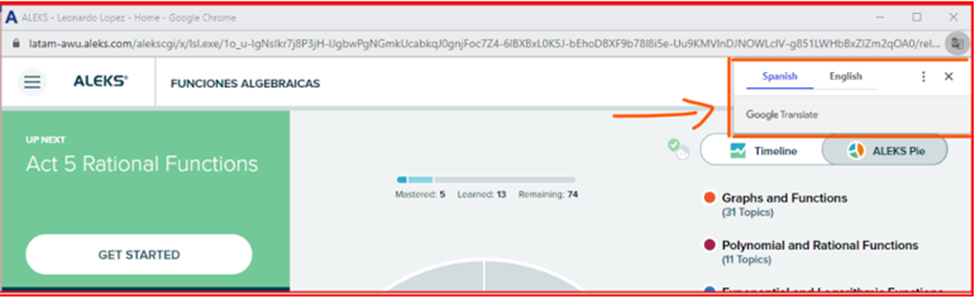
What causes this? These types of issue occur when the Google Translate feature within the Chrome browser is used to translate the webpage text back to English from Spanish. Most classes in ALEKS offer a toggle that allows students to switch the display from English to Spanish. When a student is using the Google Chrome browser, and the ALEKS language toggle is switched to Spanish, the Google Translate feature is triggered and asks, “If you want to switch the language to English on the Chrome browser.” When this option is clicked, Chrome does its best to translate the text back to English, but the ALEKS interface is still in Spanish.
Solution: Disable Google Translate OR switch it to “Never translate this site.” See below for detailed instructions.
Example:
The student is logged into their account using the Chrome browser.
In the ALEKS interface, the student clicks the toggle to change the language to Spanish.
Chrome turns on the Google translation tool, which appears as a popup in the top right corner, and the student selects English.
The display is then translated back to English, but it’s not the true English display, causing display issues.
How to fix the Google Translate feature on Chrome:
Log in to your ALEKS account.
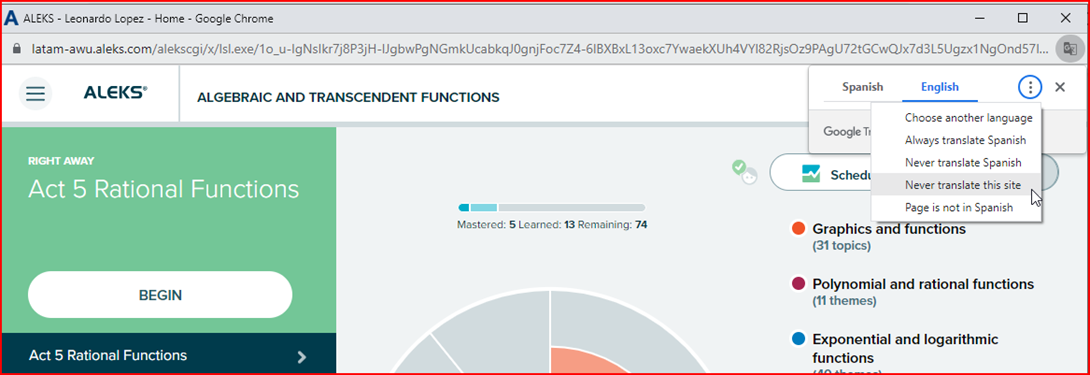
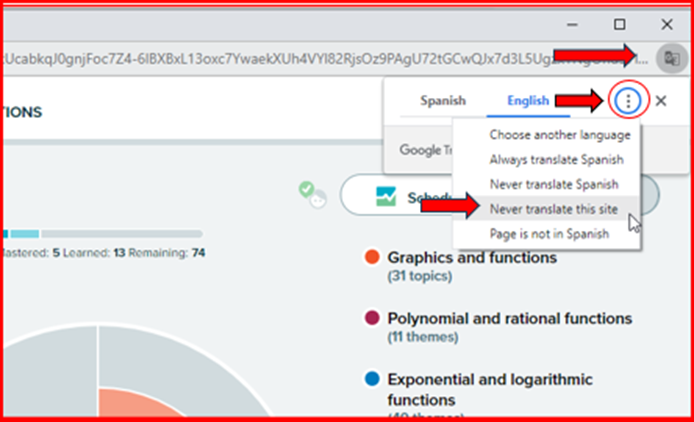
At the top right of the Google browser, open the small menu for the translation language settings.
Then, click on the 3 dots to open additional options and select “Never translate this site”.
This will bring the ALEKS interface display back to Spanish.
Last, click on the English/Spanish toggle within ALEKS to change the ALEKS display back to English.
It looks like you're outside the United States. Do you want to see your regional version of this page?
aleks
Personas
Personas/School Educator
Personas/School Educator/Homeschooling Parent
Personas/School Student
Business Unit
Business Unit/Independent Use
Programs & Solutions
Programs & Solutions/ALEKS
Business Unit/Higher Education
Personas/School Parent
Personas/Higher Ed Student
Personas/School Educator/Classroom Teacher
Asset Format Type
Asset Format Type/Customer Support
Personas/Higher Ed Educator
Personas/Higher Ed Educator/Instructor
Business Unit/PreK-12
independent use
highered
prek-12
2026-03-24T18:55:14.635-03:00
<p><span><span><span><span><strong><span><span><span>Issues/Symptoms</span></span></span></strong><span><span><span>: Text or numbers overlap; Spanish and English are mixed; numbers are displayed where words should be. </span></span></span></span></span></span></span><br> <br> <span><span><span><span><strong><span><span><span>What causes this? </span></span></span></strong><span><span><span> These types of issue occur when the Google Translate feature within the Chrome browser is used to translate the webpage text back to English from Spanish. Most classes in ALEKS offer a toggle that allows students to switch the display from English to Spanish. When a student is using the Google Chrome browser, and the ALEKS language toggle is switched to Spanish, the Google Translate feature is triggered and asks, “If you want to switch the language to English on the Chrome browser.” When this option is clicked, Chrome does its best to translate the text back to English, but the ALEKS interface is still in Spanish. </span></span></span></span></span></span></span><br> <br> <span><span><span><span><strong><span><span><span>Solution</span></span></span></strong><span><span><span>: Disable Google Translate OR switch it to “Never translate this site.” See below for detailed instructions.</span></span></span></span></span></span></span><br> <br> <span><span><span><strong><span><span><span>Example</span></span></span></strong><span><span><span>: </span></span></span></span></span></span></p> <ol> <li class="csg-p"><span><span><span><span><span><span><span><span>The student is logged into their account using the Chrome browser.</span></span></span></span></span></span></span></span></li> <li class="csg-p"><span><span><span><span><span><span><span><span>In the ALEKS interface, the student clicks the toggle to change the language to Spanish.</span></span></span></span></span></span></span></span></li> <li class="csg-p"><span><span><span><span><span><span><span><span>Chrome turns on the Google translation tool, which appears as a popup in the top right corner, and the student selects English.</span></span></span></span></span></span></span></span></li> <li class="csg-p"><span><span><span><span><span><span><span><span>The display is then translated back to English, but it’s not the true English display, causing display issues.</span></span></span></span></span></span></span></span></li> </ol> <p><img alt="image.png" src="/content/dam/mhe/support/support-images/migrated/rtaImage--1701471423.jpeg" data-assetref="rtaImage--1701471423-1785426041680"><br> <br> <br> <span><span><span><span><strong><span><span><span>How to fix the Google Translate feature on Chrome:</span></span></span></strong></span></span></span></span></p> <ol> <li><ol> <li class="csg-p"><span><span><span><span><span><span><span><span>Log in to your ALEKS account.</span></span></span></span></span></span></span></span></li> <li class="csg-p"><span><span><span><span><span><span><span><span>At the top right of the Google browser, open the small menu for the translation language settings.</span></span></span></span></span></span></span></span><ol> <li class="csg-p"><span><span><span><span><span><span><span>Then, click on the 3 dots to open additional options and select “<strong>Never translate this site”</strong>. </span></span></span></span></span></span></span></li> </ol> </li> <li class="csg-p"><span><span><span><span><span><span><span><span>This will bring the ALEKS interface display back to Spanish.</span></span></span></span></span></span></span></span></li> <li class="csg-p"><span><span><span><span><span><span><span><span>Last, click on the English/Spanish toggle within ALEKS to change the ALEKS display back to English.</span></span></span></span></span></span></span></span></li> </ol> </li> </ol> <div class="csg-p"><img alt="image.png" src="/content/dam/mhe/support/support-images/migrated/rtaImage--1701471485.jpeg" data-assetref="rtaImage--1701471485-1785426041680"><br> <img alt="image.png" src="/content/dam/mhe/support/support-images/migrated/rtaImage--1701471401.jpeg" data-assetref="rtaImage--1701471401-1785426041680"><br> <br> <span><span><span><span>Additional Chrome language translation information: </span><a href="https://support.google.com/chrome/answer/173424?hl=en&co=GENIE.Platform%3DDesktop" target="_blank">https://support.google.com/chrome/answer/173424?hl=en&co=GENIE.Platform%3DDesktop</a></span></span></span><br> </div> dts Fix language display issues when ALEKS appears in Spanish or mixed languages. 2025-11-19 ALEKS stuck in Spanish or mix of Spanish and English words Fix language display issues when ALEKS appears in Spanish or mixed languages. Fix language display issues when ALEKS appears in Spanish or mixed languages.
Fix language display issues when ALEKS appears in Spanish or mixed languages.
Issues/Symptoms: Text or numbers overlap; Spanish and English are mixed; numbers are displayed where words should be. What causes this? These types of issue occur when the Google Translate feature within the Chrome browser is used to translate the webpage text back to English from Spanish. Most classes in ALEKS offer a toggle that allows students to switch the display from English to Spanish. When a student is using the Google Chrome browser, and the ALEKS language toggle is switched to Spanish, the Google Translate feature is triggered and asks, “If you want to switch the language to English on the Chrome browser.” When this option is clicked, Chrome does its best to translate the text back to English, but the ALEKS interface is still in Spanish. Solution: Disable Google Translate OR switch it to “Never translate this site.” See below for detailed instructions. Example: The student is logged into their account using the Chrome browser. In the ALEKS interface, the student clicks the toggle to change the language to Spanish. Chrome turns on the Google translation tool, which appears as a popup in the top right corner, and the student selects English. The display is then translated back to English, but it’s not the true English display, causing display issues. How to fix the Google Translate feature on Chrome: Log in to your ALEKS account. At the top right of the Google browser, open the small menu for the translation language settings. Then, click on the 3 dots to open additional options and select “Never translate this site”. This will bring the ALEKS interface display back to Spanish. Last, click on the English/Spanish toggle within ALEKS to change the ALEKS display back to English. Additional Chrome language translation information: https://support.google.com/chrome/answer/173424?hl=en&co=GENIE.Platform%3DDesktop
dts
Classroom Teacher, Higher Education, School Parent, Homeschooling Parent, PreK-12, Customer Support, Independent Use, Instructor, ALEKS, Higher Ed Student, School Student