illustrative-math
impact
arrive-math
5-steps-to-a-5-test-prep
mh-social-studies
reveal-math
Programs & Solutions
Programs & Solutions/Impact Social Studies
Programs & Solutions/Impact Social Studies/CA Impact 2019
Support Topics
Support Topics/Assessments & Reporting
Support Topics/Assessments & Reporting/Online Assessments
Programs & Solutions/Reading Mastery
Programs & Solutions/Reading Mastery/SRA Reading Mastery Transformations
Context
Context/Curriculum Type
Context/Curriculum Type/Supplemental
Programs & Solutions/Open Court Reading
Programs & Solutions/Open Court Reading/Open Court Reading 2025
Programs & Solutions/Illustrative Math
Context/Subject
Context/Subject/Visual & Performing Arts
Context/Education Level
Context/Education Level/High School
Programs & Solutions/AP Edition
Programs & Solutions/AP Edition/AP Computer Science
Programs & Solutions/Teen Health
Programs & Solutions/Teen Health/Teen Health 2021
Programs & Solutions/AP Edition/AP Biology
Programs & Solutions/AP Edition/AP Chemistry
Programs & Solutions/Arrive Math
Context/Integration Type
Context/Integration Type/Direct Login & Auto-Rostering
Programs & Solutions/Inspire Science
Programs & Solutions/Inspire Science/CA Inspire Science 2020
Programs & Solutions/5 Steps to a 5 - AP Test Prep
Programs & Solutions/Level Up
Programs & Solutions/Level Up/Level Up 9–12
Programs & Solutions/McGraw Hill Math
Programs & Solutions/McGraw Hill Math/Texas Math
Context/Subject/Math
Asset Format Type
Asset Format Type/Customer Support
Business Unit
Business Unit/PreK-12
Programs & Solutions/Building Blocks
Programs & Solutions/Building Blocks/Building Blocks PreK 2025
Programs & Solutions/McGraw Hill CTE
Programs & Solutions/McGraw Hill CTE/CTE - Early Childhood Education
Programs & Solutions/AP Edition/AP History & Geography
Programs & Solutions/Reading Laboratory
Programs & Solutions/Reading Laboratory/SRA Reading Laboratory 2025
Programs & Solutions/AP Edition/AP Music Theory
Context/Curriculum Type/Career & Technical Education
Programs & Solutions/McGraw Hill CTE/CTE - Business, Marketing, and Finance
Programs & Solutions/McGraw Hill CTE/CTE - Computing and Technology
Programs & Solutions/McGraw Hill Social Studies
Programs & Solutions/McGraw Hill Social Studies/FL Social Studies 2024 (K-12)
Programs & Solutions/McGraw Hill CTE/CTE - Criminal Justice
Programs & Solutions/McGraw Hill Literacy
Programs & Solutions/McGraw Hill Literacy/McGraw Hill Literacy Soar!
Programs & Solutions/Glencoe Health
Programs & Solutions/Glencoe Health/Glencoe Health 2022
Support Topics/Assessments & Reporting/Grades & Assignments
Context/Subject/Health
Context/Subject/Social Studies
Context/Subject/World Languages
Programs & Solutions/Level Up/Level Up 6–8
Context/Subject/Literacy
Personas
Personas/School Educator
Personas/School Educator/Classroom Teacher
Context/Education Level/Preschool
Programs & Solutions/Reveal Math (K-12)
Programs & Solutions/Reveal Math (K-12)/CA Reveal Math (K-12)
Programs & Solutions/McGraw Hill Science
Programs & Solutions/McGraw Hill Science/TX Science 2025 (K-12)
Programs & Solutions/AP Edition/AP Economics
Context/Curriculum Type/Intervention
Programs & Solutions/Level Up/Level Up K–5
Programs & Solutions/Inspire Science/Inspire Science 2020
Programs & Solutions/AP Edition/AP African American Studies
Programs & Solutions/McGraw Hill Science/FL Science 2025 (K-12)
Programs & Solutions/McGraw Hill Literacy/McGraw Hill Literacy Emerge!
Programs & Solutions/McGraw Hill Literacy/McGraw Hill Literacy Summit!
Context/Curriculum Type/Core
Context/Education Level/Middle School
Context/Integration Type/SSO & Manual-Rostering
Programs & Solutions/McGraw Hill CTE/CTE - Agriculture
Programs & Solutions/AP Edition/AP Psychology
Programs & Solutions/Number Worlds
Programs & Solutions/Number Worlds/Number Worlds 2024
Programs & Solutions/AP Edition/AP Public Speaking
Context/Subject/Science
Programs & Solutions/Asi Se Dice
Programs & Solutions/Asi Se Dice/Asi se Dice 2024
Context/Integration Type/SSO & Auto-Rostering
Context/Curriculum Type/AP, Honors & Electives
Programs & Solutions/McGraw Hill CTE/CTE - Health Science
Context/Education Level/Elementary School
Context/Integration Type/Direct Login & Manual-Rostering
Programs & Solutions/AP Edition/AP Language and Composition
Programs & Solutions/McGraw Hill Science/TN Science (K-12)
Programs & Solutions/AP Edition/AP Statistics
Programs & Solutions/AP Edition/AP Precalculus
Programs & Solutions/McGraw Hill CTE/CTE - Culinary Arts
Programs & Solutions/Building Blocks/Building Blocks 2024
prek-12
2026-03-24T19:16:30.628-03:00
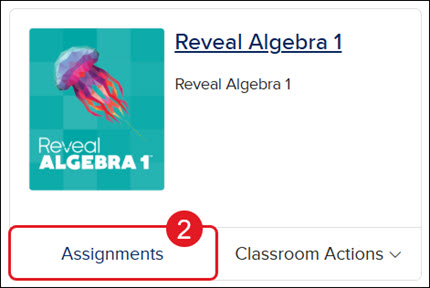
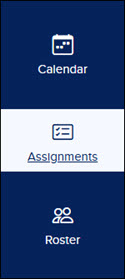
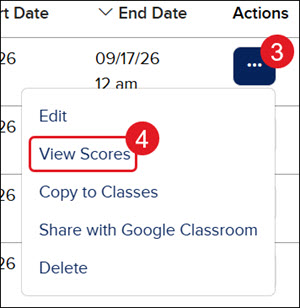
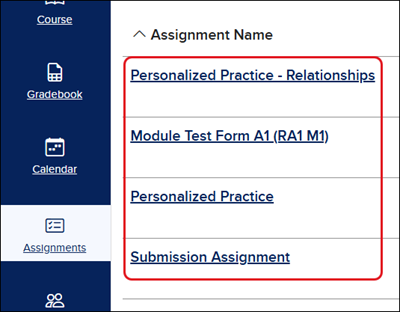
<p><a href="https://hub.mheducation.com/share/xmnr3mabi4ty" target="_blank">View the demo in a separate tab.</a></p> <p><a href="https://hub.mheducation.com/share/zbirti1wmknu" target="_blank">View the Spanish version of the demo.</a></p> <p> </p> <h2 class="fs-5">Article Contents</h2> <p><a href="#interactive_submission" target="_self">Interactive and Submission Assignments</a></p> <p><a href="#instruction_sb_ls" target="_self">Instruction and SmartBook/LearnSmart Assignments</a></p> <p><a href="#bulk_score" target="_self">Bulk Grade Assignments</a></p> <p><a href="#gradebook" target="_self">Through the Gradebook</a></p> <p><a href="/content/mheducation/us/en/prek-12/support/knowledge/mh-assess-manually-grade-assessments.html" target="_blank">Manually Grade Assessments</a></p> <ul> <li><a href="/content/mheducation/us/en/prek-12/support/knowledge/mh-assess---class-scoresheet.html" target="_blank">Class Scoresheet</a></li> <li><a href="https://mh.my.site.com/DTS/s/article/MH-Assess---Upload-Scores-via-CSV" target="_blank">Upload Scores by CSV</a></li> </ul> <p> </p> <h3 class="fs-5"><a id="interactive_submission"></a>Interactive and Submission Assignments</h3> <p>These assignments include eBook pages and certain resource assignments.</p> <ol> <li>SSO or log in at <a target="_blank" href="https://my.mheducation.com/">my.mheducation.com</a>.<br> <br> </li> <li>Click the <strong>Assignments </strong>button on the class card.<br> <br> <img src="/content/dam/mhe/support/support-images/dts-k12-images/grade-ol-assignments/grade-ol-assignments-1.jpg" data-assetref="grade-ol-assignments-1-1789582515555"><br> <br> You can also launch the class and click on <strong>Assignments </strong>from the navigation menu.<br> <br> <img src="/content/dam/mhe/support/support-images/dts-k12-images/grade-ol-assignments/grade-ol-assignments-2.jpg" data-assetref="grade-ol-assignments-2-1789582521475"><br> <br> </li> <li>Click on the <strong>Options </strong>button in the <strong>Action</strong> column.<br> <br> </li> <li>Click <strong>View Scores </strong>from the menu.<br> <br> <img src="/content/dam/mhe/support/support-images/dts-k12-images/grade-ol-assignments/grade-ol-assignments-3.jpg" data-assetref="grade-ol-assignments-3-1789582536153"><br> <br> You can also click on the <strong>Assignment Name</strong>.<br> <br> <img src="/content/dam/mhe/support/support-images/migrated/rtaImage-326006667.jpeg" data-assetref="rtaImage-326006667-1779910013802"><br> <br> </li> <li>Click the <strong>View </strong>link in the <strong>Student Work</strong> column.<br> <br> <img src="/content/dam/mhe/support/support-images/migrated/rtaImage-326116642.jpeg" data-assetref="rtaImage-326116642-1779910013802"><br> <br> </li> <li>Under <strong>Assignment Score</strong>, enter the number of <strong>Points</strong>.<br> <br> </li> <li>Click the <strong>Save </strong>button.<br> <br> A. View the completed student work and/or download any files submitted in the center. Use the back/forth arrows to navigate between pages.<br> <br> B. Navigate between student work by clicking the back/forth arrows or select a student from the drop-down.<br> <br> C. Click the <strong>Reopen Assignment</strong> button to allow for revisions by the student.<br> <br> D. Click <strong>Add Note</strong> to add a note for the student to view on their assignment.<br> <br> <img src="/content/dam/mhe/support/support-images/migrated/rtaImage-326117558.jpeg" data-assetref="rtaImage-326117558-1779910013802"></li> </ol> <p> </p> <h3 class="fs-5"><a id="instruction_sb_ls"></a>Instruction and SmartBook/LearnSmart Assignments</h3> <p>Keep in mind, SmartBook/LearnSmart (also known as Personalized Practice) assignments will automatically score the student based on the progress made for the assignment; although, teachers have the option to manually change the score.</p> <ol> <li>SSO or log in at <a target="_blank" href="https://my.mheducation.com/">my.mheducation.com</a>.<br> <br> </li> <li>Click the <strong>Assignments </strong>button on the class card.<br> <br> <img src="/content/dam/mhe/support/support-images/dts-k12-images/grade-ol-assignments/grade-ol-assignments-1.jpg" data-assetref="grade-ol-assignments-1-1789582593871"><br> <br> You can also launch the class and click on <strong>Assignments </strong>from the navigation menu.<br> <br> <img src="/content/dam/mhe/support/support-images/dts-k12-images/grade-ol-assignments/grade-ol-assignments-2.jpg" data-assetref="grade-ol-assignments-2-1789582598956"><br> <br> </li> <li>Click on the <strong>Options </strong>button in the <strong>Action</strong> column.<br> <br> </li> <li>Click <strong>View Scores </strong>from the menu.<br> <br> <img src="/content/dam/mhe/support/support-images/dts-k12-images/grade-ol-assignments/grade-ol-assignments-3.jpg" data-assetref="grade-ol-assignments-3-1789582606892"><br> <br> You can also click on the <strong>Assignment Name</strong>.<br> <br> <img src="/content/dam/mhe/support/support-images/migrated/rtaImage-326006667-1.jpeg" data-assetref="rtaImage-326006667-1-1779910013802"><br> <br> </li> <li>Click in the <strong>Score </strong>field.<br> <br> </li> <li>Enter the points.<br> <br> <img src="/content/dam/mhe/support/support-images/migrated/rtaImage-326118324.jpeg" data-assetref="rtaImage-326118324-1779910013802"><br> <br> </li> <li>Click <strong>Save </strong>at the bottom of the page.</li> </ol> <p> </p> <h3 class="fs-5"><a id="bulk_score"></a>Bulk Score</h3> <ol> <li>SSO or log in at <a target="_blank" href="https://my.mheducation.com/">my.mheducation.com</a>.<br> <br> </li> <li>Click the <strong>Assignments </strong>button on the class card.<br> <br> <img src="/content/dam/mhe/support/support-images/dts-k12-images/grade-ol-assignments/grade-ol-assignments-1.jpg" data-assetref="grade-ol-assignments-1-1789582626586"><br> <br> You can also launch the class and click on <strong>Assignments </strong>from the navigation menu.<br> <br> <img src="/content/dam/mhe/support/support-images/dts-k12-images/grade-ol-assignments/grade-ol-assignments-2.jpg" data-assetref="grade-ol-assignments-2-1789582631519"><br> <br> </li> <li>Click on the <strong>Options </strong>button in the <strong>Action</strong> column.<br> <br> </li> <li>Click <strong>View Scores </strong>from the menu.<br> <br> <img src="/content/dam/mhe/support/support-images/dts-k12-images/grade-ol-assignments/grade-ol-assignments-3.jpg" data-assetref="grade-ol-assignments-3-1789582636418"><br> <br> You can also click on the <strong>Assignment Name</strong>.<br> <br> <img src="/content/dam/mhe/support/support-images/migrated/rtaImage-326006667-2.jpeg" data-assetref="rtaImage-326006667-2-1779910013802"><br> <br> </li> <li>Click on the <strong>Options </strong>button at the far right.<br> <br> </li> <li>Click <strong>Bulk Score</strong> from the menu.<br> <br> <img src="/content/dam/mhe/support/support-images/dts-k12-images/grade-ol-assignments/grade-ol-assignments-4.jpg" data-assetref="grade-ol-assignments-4-1789582720932"><br> <br> </li> <li>On the <strong>Assignment Bulk Score</strong> pop-up, enter the points for all students.<br> <br> A. Check the <strong>Also override existing scores to scores</strong> box.<br> <br> </li> <li>Click the <strong>Save </strong>button<strong>.<br> <br> </strong><img src="/content/dam/mhe/support/support-images/migrated/rtaImage-326112314.jpeg" data-assetref="rtaImage-326112314-1779910013803"></li> </ol> <p> </p> <h3 class="fs-5"><a id="gradebook"></a>Through the Gradebook</h3> <ol> <li>SSO or log in at <a target="_blank" href="https://my.mheducation.com/">my.mheducation.com</a>.<br> <br> </li> <li>Launch the course.<br> <br> </li> <li>Click <strong>Gradebook</strong> on the navigation menu.<br> <br> <img src="/content/dam/mhe/support/support-images/dts-k12-images/grade-ol-assignments/grade-ol-assignments-5.jpg" data-assetref="grade-ol-assignments-5-1789582792612"><br> <br> </li> <li>Click on the <strong>Student </strong>name.<br> <br> <img src="/content/dam/mhe/support/support-images/migrated/rtaImage-326117811.jpeg" data-assetref="rtaImage-326117811-1779910013803"><br> <br> Clicking on the assignment name will take you to the <strong>Assignment Details </strong>page for that selection.<br> <br> </li> <li>Click in the <strong>Score </strong>column and enter the points. This is only an available option for certain assignment types.<br> <br> </li> <li>Click <strong>Enter </strong>or click out of the box to save the score.<br> <br> <img src="/content/dam/mhe/support/support-images/migrated/rtaImage-326122242.jpeg" data-assetref="rtaImage-326122242-1779910013803"></li> </ol> dts Learn how to manually grade Open Learning course assignments. 2026-03-06 Grade Open Learning Assignments Learn how to manually grade Open Learning course assignments. Learn how to manually grade Open Learning course assignments.
Learn how to manually grade Open Learning course assignments.
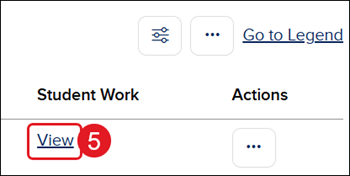
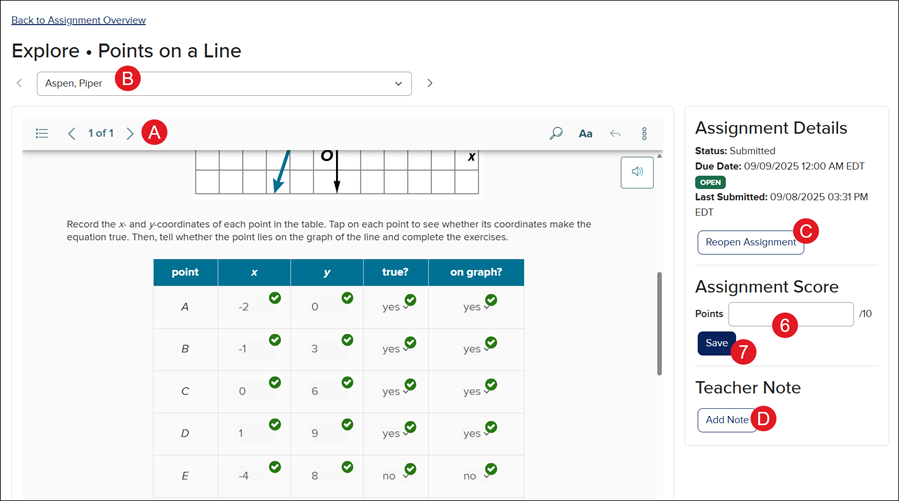
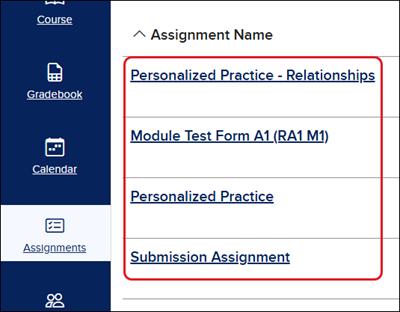
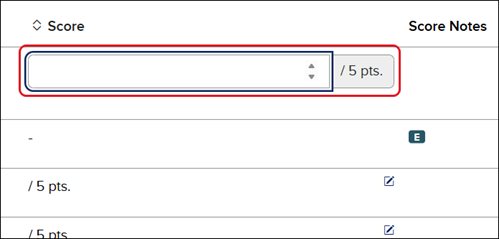
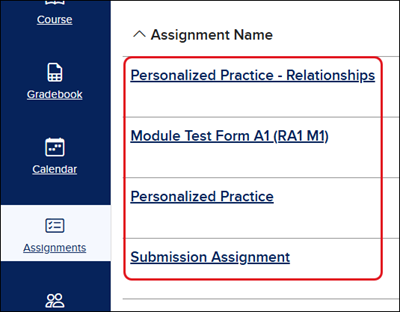
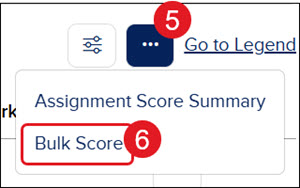
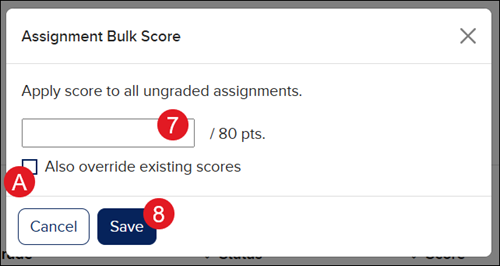
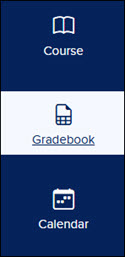
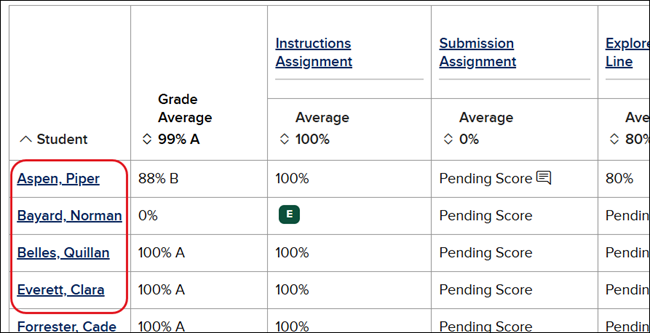
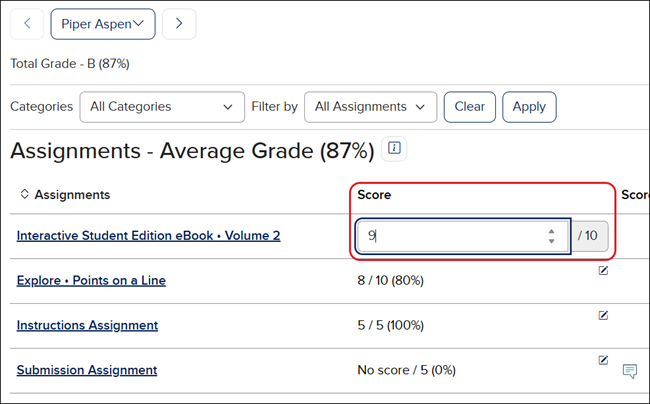
View the demo in a separate tab. View the Spanish version of the demo. Article Contents Interactive and Submission Assignments Instruction and SmartBook/LearnSmart Assignments Bulk Grade Assignments Through the Gradebook Manually Grade Assessments Class Scoresheet Upload Scores by CSV Interactive and Submission Assignments These assignments include eBook pages and certain resource assignments. SSO or log in at my.mheducation.com. Click the Assignments button on the class card. You can also launch the class and click on Assignments from the navigation menu. Click on the Options button in the Action column. Click View Scores from the menu. You can also click on the Assignment Name. Click the View link in the Student Work column. Under Assignment Score, enter the number of Points. Click the Save button. A. View the completed student work and/or download any files submitted in the center. Use the back/forth arrows to navigate between pages. B. Navigate between student work by clicking the back/forth arrows or select a student from the drop-down. C. Click the Reopen Assignment button to allow for revisions by the student. D. Click Add Note to add a note for the student to view on their assignment. Instruction and SmartBook/LearnSmart Assignments Keep in mind, SmartBook/LearnSmart (also known as Personalized Practice) assignments will automatically score the student based on the progress made for the assignment; although, teachers have the option to manually change the score. SSO or log in at my.mheducation.com. Click the Assignments button on the class card. You can also launch the class and click on Assignments from the navigation menu. Click on the Options button in the Action column. Click View Scores from the menu. You can also click on the Assignment Name. Click in the Score field. Enter the points. Click Save at the bottom of the page. Bulk Score SSO or log in at my.mheducation.com. Click the Assignments button on the class card. You can also launch the class and click on Assignments from the navigation menu. Click on the Options button in the Action column. Click View Scores from the menu. You can also click on the Assignment Name. Click on the Options button at the far right. Click Bulk Score from the menu. On the Assignment Bulk Score pop-up, enter the points for all students. A. Check the Also override existing scores to scores box. Click the Save button. Through the Gradebook SSO or log in at my.mheducation.com. Launch the course. Click Gradebook on the navigation menu. Click on the Student name. Clicking on the assignment name will take you to the Assignment Details page for that selection. Click in the Score column and enter the points. This is only an available option for certain assignment types. Click Enter or click out of the box to save the score.
dts
Customer Support, PreK-12, Classroom Teacher, Preschool, Elementary School, Middle School, High School, Direct Login & Auto-Rostering, Direct Login & Manual-Rostering, SSO & Auto-Rostering, SSO & Manual-Rostering, Core, Intervention, Supplemental, AP, Honors & Electives, Career & Technical Education, Literacy, Math, Science, Social Studies, Health, Visual & Performing Arts, World Languages, AP Biology, AP Chemistry, AP History & Geography, AP Psychology, AP Economics, AP African American Studies, AP Precalculus, AP Statistics, AP Computer Science, AP Language and Composition, AP Public Speaking, AP Music Theory, 5 Steps to a 5 - AP Test Prep, Glencoe Health 2022, Teen Health 2021, Arrive Math, Building Blocks 2024, Building Blocks PreK 2025, Number Worlds 2024, SRA Reading Laboratory 2025, SRA Reading Mastery Transformations, McGraw Hill Literacy Emerge!, McGraw Hill Literacy Summit!, McGraw Hill Literacy Soar!, Open Court Reading 2025, CA Reveal Math (K-12), Illustrative Math, Reveal Math (K-12), Texas Math, CA Inspire Science 2020, FL Science 2025 (K-12), Inspire Science 2020, TN Science (K-12), TX Science 2025 (K-12), CA Impact 2019, FL Social Studies 2024 (K-12), Impact Social Studies, McGraw Hill Social Studies, Asi se Dice 2024, CTE - Business, Marketing, and Finance, CTE - Health Science, CTE - Computing and Technology, CTE - Agriculture, CTE - Culinary Arts, CTE - Early Childhood Education, CTE - Criminal Justice, Level Up K–5, Level Up 6–8, Level Up 9–12, Grades & Assignments, Online Assessments