illustrative-math
aleks
impact
arrive-math
aleks-adventure
5-steps-to-a-5-test-prep
mh-social-studies
actively-learn
redbird
achieve3000-literacy
redbird-math
reveal-math
Support Topics
Support Topics/Getting Started & Orientation
Support Topics/Getting Started & Orientation/Back-to-School Setup
Programs & Solutions
Programs & Solutions/Impact Social Studies
Programs & Solutions/Impact Social Studies/CA Impact 2019
Programs & Solutions/Reading Mastery
Programs & Solutions/Reading Mastery/SRA Reading Mastery Transformations
Context
Context/Curriculum Type
Context/Curriculum Type/Supplemental
Programs & Solutions/Open Court Reading
Programs & Solutions/Open Court Reading/Open Court Reading 2025
Programs & Solutions/Illustrative Math
Programs & Solutions/ALEKS
Context/Subject
Context/Subject/Visual & Performing Arts
Context/Education Level
Context/Education Level/High School
Programs & Solutions/AP Edition
Programs & Solutions/AP Edition/AP Computer Science
Programs & Solutions/Teen Health
Programs & Solutions/Teen Health/Teen Health 2021
Programs & Solutions/AP Edition/AP Biology
Programs & Solutions/AP Edition/AP Chemistry
Programs & Solutions/Arrive Math
Context/Integration Type
Context/Integration Type/Direct Login & Auto-Rostering
Programs & Solutions/ALEKS Adventure
Programs & Solutions/Inspire Science
Programs & Solutions/Inspire Science/CA Inspire Science 2020
Programs & Solutions/5 Steps to a 5 - AP Test Prep
Programs & Solutions/Level Up
Programs & Solutions/Level Up/Level Up 9–12
Programs & Solutions/McGraw Hill Math
Programs & Solutions/McGraw Hill Math/Texas Math
Context/Subject/Math
Asset Format Type
Asset Format Type/Customer Support
Business Unit
Business Unit/PreK-12
Programs & Solutions/Building Blocks
Programs & Solutions/Building Blocks/Building Blocks PreK 2025
Programs & Solutions/McGraw Hill CTE
Programs & Solutions/McGraw Hill CTE/CTE - Early Childhood Education
Programs & Solutions/AP Edition/AP History & Geography
Programs & Solutions/Reading Laboratory
Programs & Solutions/Reading Laboratory/SRA Reading Laboratory 2025
Programs & Solutions/StudySync
Programs & Solutions/StudySync/StudySync 2021
Programs & Solutions/AP Edition/AP Music Theory
Context/Curriculum Type/Career & Technical Education
Programs & Solutions/McGraw Hill CTE/CTE - Business, Marketing, and Finance
Programs & Solutions/McGraw Hill CTE/CTE - Computing and Technology
Programs & Solutions/McGraw Hill Social Studies
Programs & Solutions/McGraw Hill Social Studies/FL Social Studies 2024 (K-12)
Programs & Solutions/McGraw Hill CTE/CTE - Criminal Justice
Programs & Solutions/McGraw Hill Literacy
Programs & Solutions/McGraw Hill Literacy/McGraw Hill Literacy Soar!
Programs & Solutions/Glencoe Health
Programs & Solutions/Glencoe Health/Glencoe Health 2022
Context/Subject/Health
Context/Subject/Social Studies
Context/Subject/World Languages
Programs & Solutions/Level Up/Level Up 6–8
Context/Subject/Literacy
Personas
Personas/School Educator
Personas/School Educator/Classroom Teacher
Context/Education Level/Preschool
Programs & Solutions/Reveal Math (K-12)
Programs & Solutions/Reveal Math (K-12)/CA Reveal Math (K-12)
Programs & Solutions/McGraw Hill Science
Programs & Solutions/McGraw Hill Science/TX Science 2025 (K-12)
Programs & Solutions/AP Edition/AP Economics
Context/Curriculum Type/Intervention
Programs & Solutions/Level Up/Level Up K–5
Programs & Solutions/Inspire Science/Inspire Science 2020
Programs & Solutions/AP Edition/AP African American Studies
Programs & Solutions/McGraw Hill Science/FL Science 2025 (K-12)
Programs & Solutions/McGraw Hill Literacy/McGraw Hill Literacy Emerge!
Programs & Solutions/Actively Learn
Programs & Solutions/McGraw Hill Literacy/McGraw Hill Literacy Summit!
Context/Curriculum Type/Core
Context/Education Level/Middle School
Context/Integration Type/SSO & Manual-Rostering
Programs & Solutions/McGraw Hill CTE/CTE - Agriculture
Programs & Solutions/AP Edition/AP Psychology
Programs & Solutions/Redbird
Programs & Solutions/Number Worlds
Programs & Solutions/Number Worlds/Number Worlds 2024
Programs & Solutions/AP Edition/AP Public Speaking
Context/Subject/Science
Programs & Solutions/Achieve3000 Literacy
Programs & Solutions/Asi Se Dice
Programs & Solutions/Asi Se Dice/Asi se Dice 2024
Context/Integration Type/SSO & Auto-Rostering
Context/Curriculum Type/AP, Honors & Electives
Support Topics/Classroom & Course Management
Support Topics/Classroom & Course Management/Class Management
Programs & Solutions/Redbird Math
Programs & Solutions/McGraw Hill CTE/CTE - Health Science
Context/Education Level/Elementary School
Programs & Solutions/All Sorts
Programs & Solutions/All Sorts/All Sorts 2026 (K-5)
Context/Integration Type/Direct Login & Manual-Rostering
Programs & Solutions/AP Edition/AP Language and Composition
Programs & Solutions/McGraw Hill Science/TN Science (K-12)
Programs & Solutions/AP Edition/AP Statistics
Programs & Solutions/AP Edition/AP Precalculus
Programs & Solutions/McGraw Hill CTE/CTE - Culinary Arts
Programs & Solutions/Building Blocks/Building Blocks 2024
prek-12
2026-03-24T19:13:00.425-03:00
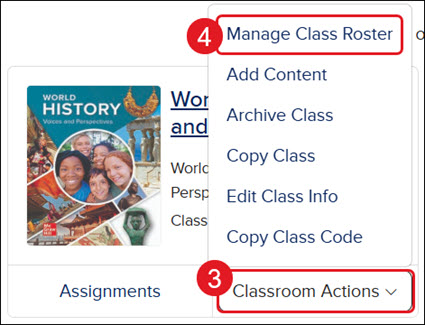
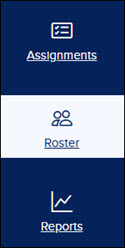
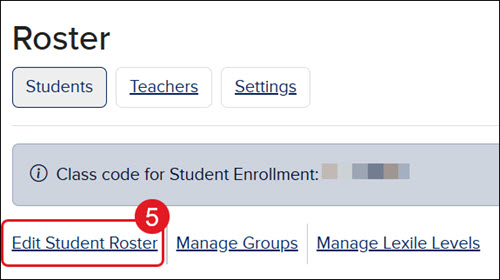
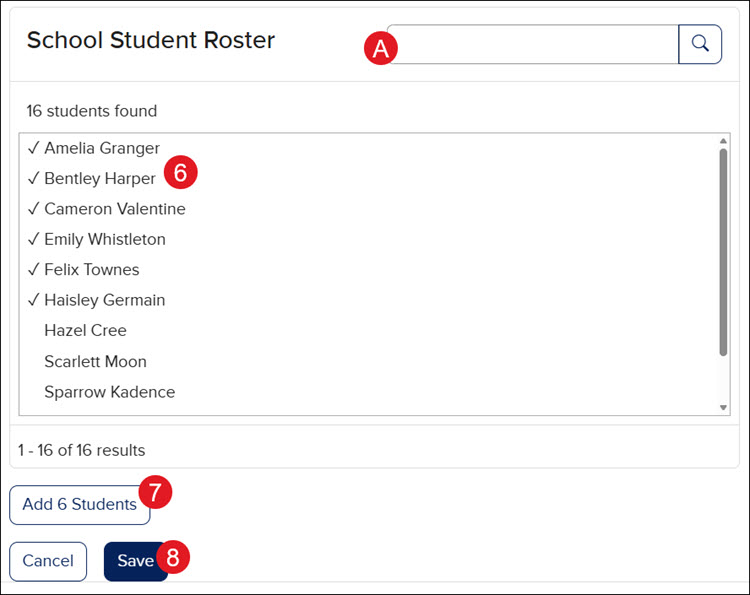
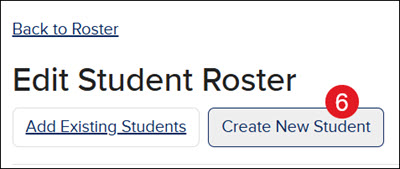
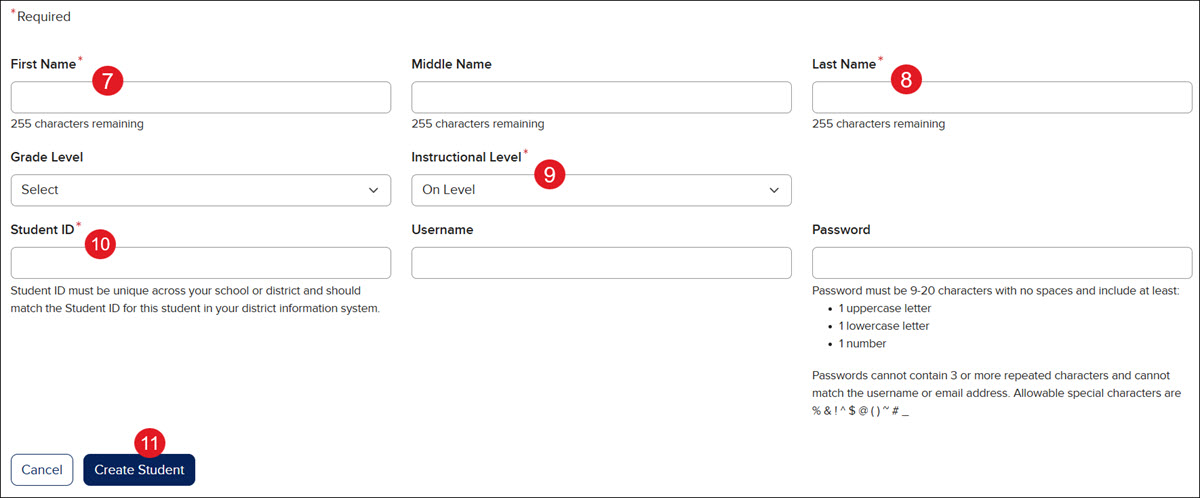
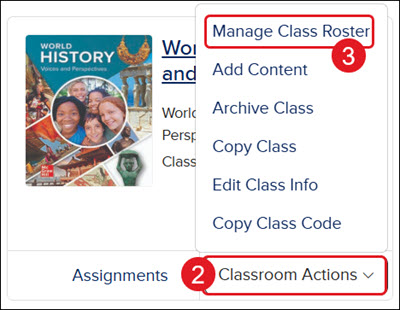
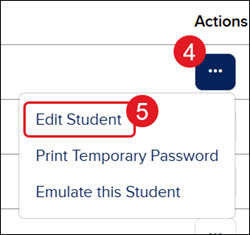
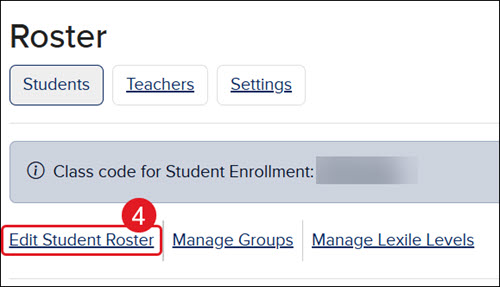
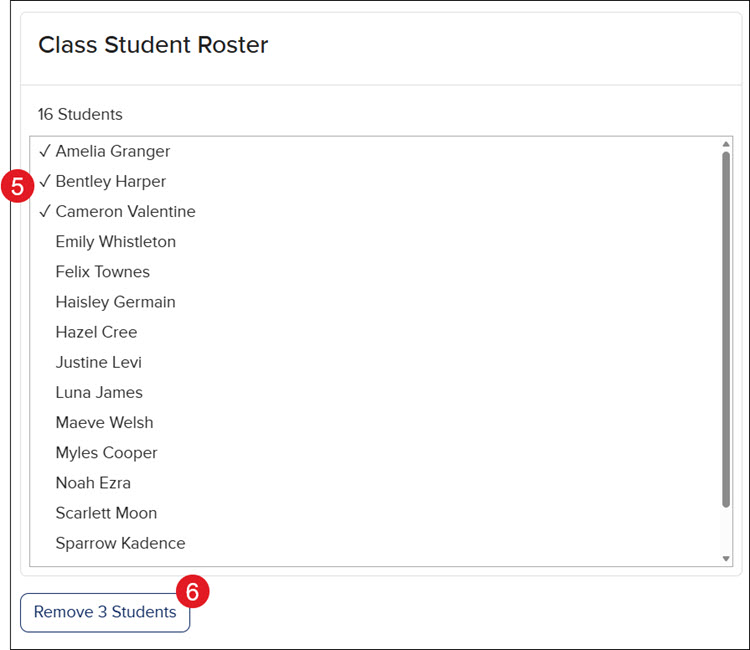
<p><a href="https://hub.mheducation.com/share/feuir0jqjayw" target="_blank">View the demo in a separate tab.</a></p> <p><a href="https://hub.mheducation.com/share/njfmxzxlhj15" target="_blank">View the Spanish version of the demo.</a></p> <p> </p> <p><strong>Note:</strong> If you are <a href="https://www.mheducation.com/prek-12/support/knowledge/access-service-descriptions.html" target="_blank">associated with a managed account</a> and you need students added or removed from classes created for you by the district, you will need to reach out to your Organization Administrator. You will only be able to add and remove students from classes you have manually created.</p> <p> </p> <h2 class="fs-5">Article Contents</h2> <p><a href="#add_students" target="_self">Add Students to Roster</a></p> <p><a href="#create_new" target="_self">Create New Student</a></p> <p><a href="#edit_profile" target="_self">Edit Student Profile</a></p> <p><a href="/content/mheducation/us/en/prek-12/support/knowledge/open-learning-platform---manage-groups" target="_blank">Manage Student Groups</a></p> <p><a href="#remove_students" target="_self">Remove Students from Roster</a></p> <p> </p> <h3 class="fs-5"><a id="add_students"></a>Add Students to Roster</h3> <p>For <a href="/content/mheducation/us/en/prek-12/support/knowledge/access-service-descriptions.html" target="_blank">district-created classes</a>, to have a student added to the class, you will need to reach out to your Organization Administrator.</p> <ol> <li>SSO or sign in at <a href="https://my.mheducation.com/" target="_blank">my.mheducation.com</a>.<br> <br> </li> <li><a target="_blank" href="/content/mheducation/us/en/prek-12/support/knowledge/open-learning---create-and-edit-a-class.html">Create a class</a>.<br> <br> </li> <li>Click on <strong>Classroom Actions</strong>.<br> <br> </li> <li>Click on <strong>Manage Class Roster</strong> from the menu.<br> <br> <img src="/content/dam/mhe/support/support-images/dts-k12-images/roster-ol-class/roster-ol-class-1.jpg" data-assetref="roster-ol-class-1-1782486781361"><br> <br> You can also click on the class and then click on <strong>Roster </strong>from the navigation menu.<br> <br> <img src="/content/dam/mhe/support/support-images/dts-k12-images/roster-ol-class/roster-ol-class-2.jpg" data-assetref="roster-ol-class-2-1782486841409"><br> <br> </li> <li>Click the <strong>Edit Student Roster</strong> link.<br> <br> <img src="/content/dam/mhe/support/support-images/dts-k12-images/roster-ol-class/roster-ol-class-3.jpg" data-assetref="roster-ol-class-3-1782486872834"><br> <br> </li> <li>In the <strong>School Student Roster</strong> section, select the student(s) you want to add to the class.<br> <br> A. Use the search field to locate a specific student.<br> <br> </li> <li>Click the <strong>Add Student</strong> button.<br> <br> </li> <li>Click the <strong>Save </strong>button.<br> <br> <img src="/content/dam/mhe/support/support-images/dts-k12-images/roster-ol-class/roster-ol-class-12.jpg" data-assetref="roster-ol-class-12-1791476889277"><br> </li> </ol> <p> </p> <h3 class="fs-5"><a id="create_new"></a>Create a New Student</h3> <p><a href="/content/mheducation/us/en/prek-12/support/knowledge/access-service-descriptions" target="_blank">Manual Roster teachers</a> also have the option to <a href="https://www.mheducation.com/prek-12/support/knowledge/import-students-rosters-resources.html" target="_blank">use the Students/Rosters import process</a> to create new student accounts. Teachers who have their classes created for them will not have access to this feature.</p> <ol> <li>SSO or sign in at <a href="https://my.mheducation.com/" target="_blank">my.mheducation.com</a>.<br> <br> </li> <li><a target="_blank" href="/content/mheducation/us/en/prek-12/support/knowledge/open-learning---create-and-edit-a-class">Create a class</a>.<br> <br> </li> <li>Click on <strong>Classroom Actions</strong>.<br> <br> </li> <li>Click on <strong>Manage Class Roster</strong> from the menu.<br> <br> <img src="/content/dam/mhe/support/support-images/dts-k12-images/roster-ol-class/roster-ol-class-1.jpg" data-assetref="roster-ol-class-1-1782487018659"><br> <br> You can also click on the class and then click on <strong>Roster </strong>from the navigation menu.<br> <br> <img src="/content/dam/mhe/support/support-images/dts-k12-images/roster-ol-class/roster-ol-class-2.jpg" data-assetref="roster-ol-class-2-1782487027807"><br> <br> </li> <li>Click the <strong>Edit Student Roster</strong> link.<br> <br> <img src="/content/dam/mhe/support/support-images/dts-k12-images/roster-ol-class/roster-ol-class-3.jpg" data-assetref="roster-ol-class-3-1782487042968"><br> <br> </li> <li>Click the <strong>Create New Student</strong> button.<br> <br> <img src="/content/dam/mhe/support/support-images/dts-k12-images/roster-ol-class/roster-ol-class-6.jpg" data-assetref="roster-ol-class-6-1782487270917"><br> <br> </li> <li>Enter a <strong>First Name</strong>.<br> <br> </li> <li>Enter a <strong>Last Name</strong>.<br> <br> </li> <li>Select an <strong>Instructional Level</strong> from the drop menu.<br> <br> </li> <li>Enter a <strong>Student ID</strong>. This must be unique across your school or district and should match the Student ID for this student in your district information system.<br> <br> The <strong>Middle Name</strong>, <strong>Grade Level</strong>, <strong>Username</strong>, and <strong>Password </strong>are optional fields.<br> <br> If you are wanting the student to have a specific <strong>Username </strong>and <strong>Password</strong>, you will want to fill in these fields, or the system will generate one for them.<br> <br> </li> <li>Click the <strong>Create Student</strong> button.<br> <br> The student is then added automatically to the class roster.<br> <br> <img src="/content/dam/mhe/support/support-images/dts-k12-images/roster-ol-class/roster-ol-class-7.jpg" data-assetref="roster-ol-class-7-1782487284078"></li> </ol> <p> </p> <h3 class="fs-5"><a id="edit_profile"></a>Edit Student Profile</h3> <p>For <a href="/content/mheducation/us/en/prek-12/support/knowledge/access-service-descriptions" target="_blank">students that are created and rostered by the district</a>, teachers will only be able to edit certain options within the student profile.</p> <ol> <li>SSO or sign in at <a href="https://my.mheducation.com/" target="_blank">my.mheducation.com</a>.<br> <br> </li> <li>Click on <strong>Classroom Actions</strong>.<br> <br> </li> <li>Click on <strong>Manage Class Roster</strong> from the menu.<br> <br> <img src="/content/dam/mhe/support/support-images/dts-k12-images/roster-ol-class/roster-ol-class-10.jpg" data-assetref="roster-ol-class-10-1791472309671"><br> <br> You can also click on the class and then click on <strong>Roster </strong>from the navigation menu.<br> <br> <img src="/content/dam/mhe/support/support-images/dts-k12-images/roster-ol-class/roster-ol-class-2.jpg" data-assetref="roster-ol-class-2-1782487315829"><br> <br> </li> <li>Click the <strong>Options </strong>button in the <strong>Actions </strong>column for the student.<br> <br> </li> <li>Click <strong>Edit Student</strong> from the menu.<br> <br> <img src="/content/dam/mhe/support/support-images/dts-k12-images/roster-ol-class/roster-ol-class-8.jpg" data-assetref="roster-ol-class-8-1782487401879"><br> <br> </li> <li>Make preferred changes.<br> <br> <strong>Note:</strong> Making changes to the Name, Grade Level, Student ID, Username, and Password fields changes them in the entire system for that student, no matter their assigned class or teacher.<br> <br> For more information about the <strong>IEP Settings</strong> section, refer to the <a href="https://www.mheducation.com/prek-12/support/knowledge/open-learning-platform-student-iep-settings.html">Set Student IEP Settings for an Open Learning Class</a> article.<br> <br> </li> <li>Click the <strong>Update </strong>button at the bottom.</li> </ol> <p> </p> <h3 class="fs-5"><a id="remove_students"></a>Remove Students from Roster</h3> <p><strong>Note:</strong> Removing a student from the roster will also remove all of their data. Adding the student back to the roster will also add the data back to the class reports.</p> <p>For <a href="/content/mheducation/us/en/prek-12/support/knowledge/access-service-descriptions" target="_blank">classes managed by the district</a>, if the student is assigned to a class the district created, you will need to reach out to the Organization Administrator to have the student removed.</p> <ol> <li>SSO or sign in at <a href="https://my.mheducation.com/" target="_blank">my.mheducation.com</a>.<br> <br> </li> <li>Click on <strong>Classroom Actions</strong>.<br> <br> </li> <li>Click on <strong>Manage Class Roster</strong> from the menu.<br> <br> <img src="/content/dam/mhe/support/support-images/dts-k12-images/roster-ol-class/roster-ol-class-10.jpg" data-assetref="roster-ol-class-10-1791472316865"><br> <br> You can also click on the class and then click on <strong>Roster </strong>from the navigation menu.<br> <br> <img src="/content/dam/mhe/support/support-images/dts-k12-images/roster-ol-class/roster-ol-class-2.jpg" data-assetref="roster-ol-class-2-1782487483076"><br> <br> </li> <li>Click the <strong>Edit Student Roster</strong> link.<br> <br> <img src="/content/dam/mhe/support/support-images/dts-k12-images/roster-ol-class/roster-ol-class-11.jpg" data-assetref="roster-ol-class-11-1791472410367"><br> <br> </li> <li>In the <strong>Class Student Roster</strong> section, select the student(s) you want to remove.<br> <br> </li> <li>Click the <strong>Remove Students</strong> button.<br> <br> <img src="/content/dam/mhe/support/support-images/dts-k12-images/roster-ol-class/roster-ol-class-9.jpg" data-assetref="roster-ol-class-9-1782487588396"><br> <br> </li> <li>Click the <strong>Save </strong>button.</li> </ol> dts Manage class rosters by adding, removing, or updating students. 2026-06-26 Add and Remove Students from an Open Learning Class Roster Manage class rosters by adding, removing, or updating students. Manage class rosters by adding, removing, or updating students.
Manage class rosters by adding, removing, or updating students.
View the demo in a separate tab. View the Spanish version of the demo. Note: If you are associated with a managed account and you need students added or removed from classes created for you by the district, you will need to reach out to your Organization Administrator. You will only be able to add and remove students from classes you have manually created. Article Contents Add Students to Roster Create New Student Edit Student Profile Manage Student Groups Remove Students from Roster Add Students to Roster For district-created classes, to have a student added to the class, you will need to reach out to your Organization Administrator. SSO or sign in at my.mheducation.com. Create a class. Click on Classroom Actions. Click on Manage Class Roster from the menu. You can also click on the class and then click on Roster from the navigation menu. Click the Edit Student Roster link. In the School Student Roster section, select the student(s) you want to add to the class. A. Use the search field to locate a specific student. Click the Add Student button. Click the Save button. Create a New Student Manual Roster teachers also have the option to use the Students/Rosters import process to create new student accounts. Teachers who have their classes created for them will not have access to this feature. SSO or sign in at my.mheducation.com. Create a class. Click on Classroom Actions. Click on Manage Class Roster from the menu. You can also click on the class and then click on Roster from the navigation menu. Click the Edit Student Roster link. Click the Create New Student button. Enter a First Name. Enter a Last Name. Select an Instructional Level from the drop menu. Enter a Student ID. This must be unique across your school or district and should match the Student ID for this student in your district information system. The Middle Name, Grade Level, Username, and Password are optional fields. If you are wanting the student to have a specific Username and Password, you will want to fill in these fields, or the system will generate one for them. Click the Create Student button. The student is then added automatically to the class roster. Edit Student Profile For students that are created and rostered by the district, teachers will only be able to edit certain options within the student profile. SSO or sign in at my.mheducation.com. Click on Classroom Actions. Click on Manage Class Roster from the menu. You can also click on the class and then click on Roster from the navigation menu. Click the Options button in the Actions column for the student. Click Edit Student from the menu. Make preferred changes. Note: Making changes to the Name, Grade Level, Student ID, Username, and Password fields changes them in the entire system for that student, no matter their assigned class or teacher. For more information about the IEP Settings section, refer to the Set Student IEP Settings for an Open Learning Class article. Click the Update button at the bottom. Remove Students from Roster Note: Removing a student from the roster will also remove all of their data. Adding the student back to the roster will also add the data back to the class reports. For classes managed by the district, if the student is assigned to a class the district created, you will need to reach out to the Organization Administrator to have the student removed. SSO or sign in at my.mheducation.com. Click on Classroom Actions. Click on Manage Class Roster from the menu. You can also click on the class and then click on Roster from the navigation menu. Click the Edit Student Roster link. In the Class Student Roster section, select the student(s) you want to remove. Click the Remove Students button. Click the Save button.
dts
Customer Support, PreK-12, Classroom Teacher, Preschool, Elementary School, Middle School, High School, Direct Login & Auto-Rostering, Direct Login & Manual-Rostering, SSO & Auto-Rostering, SSO & Manual-Rostering, Core, Intervention, Supplemental, AP, Honors & Electives, Career & Technical Education, Literacy, Math, Science, Social Studies, Health, Visual & Performing Arts, World Languages, AP Biology, AP Chemistry, AP History & Geography, AP Psychology, AP Economics, AP African American Studies, AP Precalculus, AP Statistics, AP Computer Science, AP Language and Composition, AP Public Speaking, AP Music Theory, 5 Steps to a 5 - AP Test Prep, Glencoe Health 2022, Teen Health 2021, Arrive Math, Building Blocks 2024, Building Blocks PreK 2025, Number Worlds 2024, SRA Reading Laboratory 2025, SRA Reading Mastery Transformations, Achieve3000 Literacy, Actively Learn, McGraw Hill Literacy Emerge!, McGraw Hill Literacy Summit!, McGraw Hill Literacy Soar!, Open Court Reading 2025, Redbird, StudySync 2021, ALEKS, ALEKS Adventure, CA Reveal Math (K-12), Illustrative Math, Redbird Math, Reveal Math (K-12), Texas Math, CA Inspire Science 2020, FL Science 2025 (K-12), Inspire Science 2020, TN Science (K-12), TX Science 2025 (K-12), CA Impact 2019, FL Social Studies 2024 (K-12), Impact Social Studies, McGraw Hill Social Studies, All Sorts 2026 (K-5), Asi se Dice 2024, CTE - Business, Marketing, and Finance, CTE - Health Science, CTE - Computing and Technology, CTE - Agriculture, CTE - Culinary Arts, CTE - Early Childhood Education, CTE - Criminal Justice, Level Up K–5, Level Up 6–8, Level Up 9–12, Class Management, Back-to-School Setup, Getting Started & Orientation